Prompting is an important part of using Generative AI. In order to get the best output for you situation, whether it is written output or an image, you need a good prompt. Using descriptive language and observation are important skills that our students need in order to enhance their writing skills as well. One way to make this learning fun is to try using the Google Experiment, Say What You See.
Say What You See challenges your descriptive abilities and puts your powers of observation to the test. It is an interactive game that presents you with AI-generated images and tasks you with crafting accurate and detailed descriptions. The better your description, the closer you'll get to recreating the original image using AI. It's a fun and engaging way to learn about the nuances of language and how AI interprets visual information.
Showing posts with label Google. Show all posts
Showing posts with label Google. Show all posts
Tuesday, May 28, 2024

Tuesday, May 21, 2024
Conker
Creating effective quizzes can be time-consuming. What if there was an AI assistant that could help?
Conker is a user-friendly AI-powered platform that can streamline the process of creating quizzes and formative assessments, saving you time and effort. With a topic or learning standard Conker can generate unique quizzes with a variety of question types, including multiple choice, fill-in-the-blank, and true/false.
Conker even integrates seamlessly with Google Classroom, making distribution and grading a breeze.
Give Conker a try today!
Tuesday, December 5, 2023
FigJam, the Alternative to Jamboard
If you have not already heard, Google will be sunsetting Jamboard in 2024. They have recommended FigJam as the alternative. Like Jamboard, with FigJam you can brainstorm, align decisions, and collaborate —all in one place.
The following announcement and information has come directly from FigJam:
To make the transition as seamless as possible, FigJam has launched an importer that converts your Jams into FigJam files in seconds. Most importantly, all your Jamboard elements—including stickies, images, text and more—will still be fully editable in your new FigJam file so you can be up and running without losing a beat!
Here's how to get started:
Import your Jamboard files: Visit figma.com and click the “Import” button in the top right corner to start converting your Jamboards to FigJam files. To learn more, check out our importer tutorial or help center article.
Get started with FigJam: Find more ideas on how to use FigJam in your classroom with our tutorials and free template library.
Join a training: Meet the Figma for Education team during a free live training where you'll learn the basics, walk through classroom applications and ask any questions.
Tuesday, November 21, 2023
Live Captions in Chrome
Chrome now offers live captions, it can automatically generate real-time captions directly in the browser. With a couple of quick settings adjustments you can automatically create captions for audio and video.
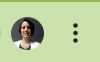
In the Chrome browser, go to the 3-dots menu in the top right corner.
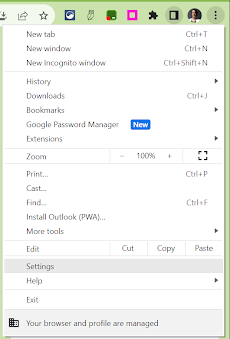
Find ‘Settings’ in the dropdown menu.
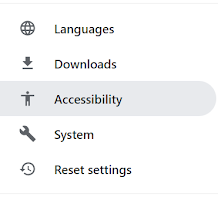
In the menu on the left, open Accessibility.
Toggle on ‘Live Caption’.

You can select a preferred language (from a very short, very limited list), delete a caption language from your account and choose to ‘Hide profanity’ in the settings.
In the Chrome browser, go to the 3-dots menu in the top right corner.
Find ‘Settings’ in the dropdown menu.
In the menu on the left, open Accessibility.
Toggle on ‘Live Caption’.
You can select a preferred language (from a very short, very limited list), delete a caption language from your account and choose to ‘Hide profanity’ in the settings.
Tuesday, November 14, 2023
Reading Mode in Chrome
Reading mode in Chrome browser is now available on all Chromebooks. Customize your reading experience with reading mode. It allows you to more easily focus on the text, reduce distractions from images and videos, adjust the font and size, the spacing and the background color for any article or webpage you are reading.
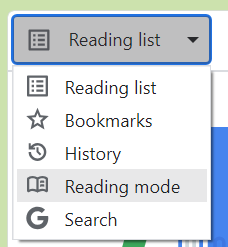
To access Reading mode, open the reading list icon in the extensions bar.

On the dropdown that says ‘reading list’ select ‘reading mode’.
Adjust the size of the reading window using the 2 vertical, parallel lines on the left.

Adjust, from a limited set of options, the font style, size, spacing and background color.

Tuesday, May 23, 2023
Filtering Data in a Google Sheet
Last week I shared a tutorial on how to sort information in a Google Sheet.
Something else that might be helpful in terms of viewing your Google Sheet information is filtering.
Below is a tutorial on how to filter your data in Google Sheets.
Tuesday, May 16, 2023
Sorting a Google Sheet
Google Sheets is a great place to store data of all types. You could use it as a database of books you have in your classroom library or a way to track grades and assignments. There are so many ways you can use Google Sheets.
After you have created your database of information though, how do you sort it?
Below is a tutorial on how to sort data in Google Sheets.
Tuesday, May 9, 2023
Adding and Editing an Image in a Google Drawing
Last week I talked about adding text to a Google Drawing to make pamphlets, flyers, newsletters or even posters.
When creating these projects you will most likely also want to add images. The link below will take you to a tutorial on how to add and edit images in a Google Drawing.
Tuesday, May 2, 2023
Adding and Editing Text in a Google Drawing
Although it is not the most robust tool on the market, Google Drawings can be used to create a variety of desktop publishing needs. Google Drawings can be used to create pamphlets, flyers, newsletters or even posters.
To create these projects you will want to start with adding text. The link below will take you to a tutorial on how to add and edit text in a Google Drawing.
Adding and Editing Text in Google Drawing (https://bit.ly/42KvlKB)
Tuesday, April 25, 2023
Closed Captioning in Google Slides
Google Slides offers a Closed Captions option. This can be used to help anyone read what is being said by the presenter or what is being said during a presentation video.
If the microphone is good enough it will also pick up any questions asked by audience members.
Closed Captioning in Google Slides can be added to the top or the bottom of the presentation. Adding the captioning to the top could be used in other ways as well. Think about having a presentation open and running above a video that doesn't have closed captioning available.
To use Closed Captions in Google Slides check out this easy to follow tutorial.
Google Slides - Closed Captions (https://bit.ly/43Q2YMg)
Tuesday, April 18, 2023
Pear Deck in Google Slides
Although Google Slides is a great way to add interest to a lecture or presentation, it can get monotonous or boring at times. Making a presentation more engaging and interactive is the best way to keep everyone's attention.
One way to make a Slides presentation more engaging and interactive is to use the Pear Deck Add-On for Google Slides (https://bit.ly/3CzccR2). Pear Deck allows everyone to have a voice and choice when answering questions, lets you see the slides show on an individual device so that you can follow along more easily, and allows teachers to do quick formative assessments to check for understanding.
To add the Pear Deck Add-On to Google Slides follow the instructions in the tutorial attached below.
Google: Install and Use Add-Ons
(https://bit.ly/38on9XO)
Tuesday, April 11, 2023
Using Emojis in Google Docs
Using Emojis can be a fun way for students to complete school work. They can be used to write summaries or a reading or writing assignment as well as crate a pictograph for a math lesson.
Google has a large selection of emojis, as special text characters, that can be used in Google Docs. To add an emoji to Google Docs follow the tutorial on the document below:
Inserting an Emoji into a Google Doc
Google has a large selection of emojis, as special text characters, that can be used in Google Docs. To add an emoji to Google Docs follow the tutorial on the document below:
Inserting an Emoji into a Google Doc
Tuesday, April 4, 2023
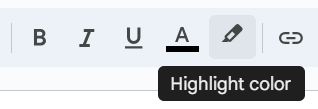
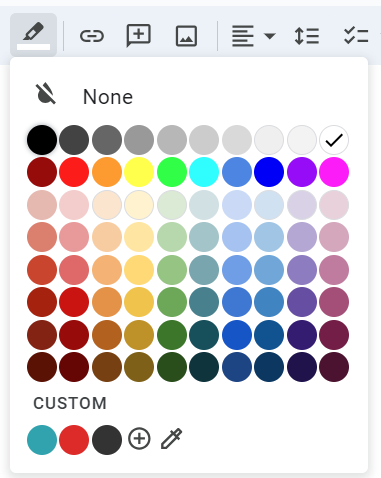
Google Docs: Highlighting Text
Highlighting text inside of Google Doc can be used in a variety of ways in the classroom. It can be used as a way to help students focus and as a way to help them learn the importance of certain information.
Students could highlight:
- key or vocab words
- main sentence
- parts of speech
- parts of a math story problem
Highlighting text in a Google Doc is fairly simple. I have outlined the steps below.
Highlight Text in a Google Doc

Tuesday, March 28, 2023
Google Workspace Introduction
Many of us used Microsoft products for our word processing, spreadsheets and presentations when we were growing up, going through school. Although Microsoft is still the biggest name in the field, Google is making a name for itself with its versions, Docs, Sheets and Slides.
As our schools continue to move to or be 1:1 technology environments, most of these devices are Chromebooks or have the Chrome browser available on them.
Although Google has changed the name of it's suite or tools, it is currently going by Google Workspace, the suite of applications has done nothing but improve, become more robust, over the years. Google Workspace for Education is a set of Google tools and services that are tailored for schools and homeschools to collaborate, streamline instruction, and keep learning safe. They are productivity and collaboration tools for all of the ways we work and learn.
Over then next few weeks we will be learning about these Google products and how we can use them to help our students achieve success. I will be picking a couple of my favorite features and giving you a quick overview of how they work along with some ideas of how you could use them in the classroom.
Tuesday, February 14, 2023
Wintertime Magnetic Poetry with Google Drawings
A couple of weeks ago I went to a great Professional Learning session offered by our local REMC, REMC 16, called Google Ignite. The session was by Eric Curts, G Suite Certified Trainer and Innovator.
During his session he showed a variety of great ways to use resources created by or sponsored by Google. We looked at some Google sites as well as the Google Workspace apps.
Google Drawings is a great Google app that is often under-utilized. It is great for activities that you would think of as 'one-slide' activities. Almost everything you can do in Google Slides you can do in Google Drawings, and vice versa.
One of the fun activities he showed us was Wintertime Magnetic Poetry. His blog post on the topic contains some great information and even contains a template link that you can copy and use.
How will you use this activity in your classroom?
Tuesday, January 31, 2023
Postlight Reader
Postlight Reader is a Google Extension that allows you to remove webpage noise and clutter from an article to make it easier for students to read.


Postlight Reader allows you to make minor changes to font style, size and light/dark background options.


Not only is this extension great for students, teachers can also use it for clearing out the clutter on articles that need to be printed or shared with others.
Tuesday, December 13, 2022
SignUp Captioning
Do you know some who is hearing impaired and could use sign language when watching shows and movies?
Are you trying to learn or improve your sign language skills?
The SignUp Google Chrome Extension overlays sign language (both American and British) interpretation on streaming platforms, such as Disney+ and Netflix, for more accessible captioning.
The SignUp Google Chrome Extension overlays sign language (both American and British) interpretation on streaming platforms, such as Disney+ and Netflix, for more accessible captioning.
To learn about SignUp visit their website at https://www.signupcaptions.com/
Tuesday, December 6, 2022
Google Slides: Closed Captions
Google Slides offers a Closed Captions option. This can help anyone read what is being said by the presenter. If the microphone is good enough it will also pick up any questions asked by audience members.
To use Closed Captions in Google Slides check out this easy to follow tutorial.
Tuesday, May 17, 2022
Tar Heel Gameplay
Tar Heel Gameplay (https://tarheelgameplay.org/) is a collection of free, easy-to-play, and accessible games. Each game is speech enabled and may be accessed using multiple interfaces, including touch screens and up to 3 switches.
Tuesday, April 19, 2022
Note Anywhere
Have you ever wanted to leave a note on a webpage? Are you looking for a tool to leave some thoughts while doing some research?
I have a great option for you to try, Note Anywhere.

Note Anywhere is a Google Extension. It allows you to add Post-it type notes to almost any web page.
The notes stay on the page until you delete them and load auto-magically when you open the web page. The extension icon tells you how many post-its you have on a page when you are on the page.
If you right click on the Note Anywhere icon in your extensions tool bar, you can open the options menu. Within options you can change the color of the post-it note. You can also view a summary of where you have notes. It will provide you with a list of URL links to the articles with notes on them.
Note Anywhere can be a useful research tool for both teachers and students.
I have a great option for you to try, Note Anywhere.
Note Anywhere is a Google Extension. It allows you to add Post-it type notes to almost any web page.
The notes stay on the page until you delete them and load auto-magically when you open the web page. The extension icon tells you how many post-its you have on a page when you are on the page.
If you right click on the Note Anywhere icon in your extensions tool bar, you can open the options menu. Within options you can change the color of the post-it note. You can also view a summary of where you have notes. It will provide you with a list of URL links to the articles with notes on them.
Note Anywhere can be a useful research tool for both teachers and students.
Subscribe to:
Posts (Atom)