Prompting is an important part of using Generative AI. In order to get the best output for you situation, whether it is written output or an image, you need a good prompt. Using descriptive language and observation are important skills that our students need in order to enhance their writing skills as well. One way to make this learning fun is to try using the Google Experiment, Say What You See.
Say What You See challenges your descriptive abilities and puts your powers of observation to the test. It is an interactive game that presents you with AI-generated images and tasks you with crafting accurate and detailed descriptions. The better your description, the closer you'll get to recreating the original image using AI. It's a fun and engaging way to learn about the nuances of language and how AI interprets visual information.
Showing posts with label Writing. Show all posts
Showing posts with label Writing. Show all posts
Tuesday, May 28, 2024

Tuesday, May 9, 2023
Adding and Editing an Image in a Google Drawing
Last week I talked about adding text to a Google Drawing to make pamphlets, flyers, newsletters or even posters.
When creating these projects you will most likely also want to add images. The link below will take you to a tutorial on how to add and edit images in a Google Drawing.
Tuesday, May 2, 2023
Adding and Editing Text in a Google Drawing
Although it is not the most robust tool on the market, Google Drawings can be used to create a variety of desktop publishing needs. Google Drawings can be used to create pamphlets, flyers, newsletters or even posters.
To create these projects you will want to start with adding text. The link below will take you to a tutorial on how to add and edit text in a Google Drawing.
Adding and Editing Text in Google Drawing (https://bit.ly/42KvlKB)
Tuesday, April 11, 2023
Using Emojis in Google Docs
Using Emojis can be a fun way for students to complete school work. They can be used to write summaries or a reading or writing assignment as well as crate a pictograph for a math lesson.
Google has a large selection of emojis, as special text characters, that can be used in Google Docs. To add an emoji to Google Docs follow the tutorial on the document below:
Inserting an Emoji into a Google Doc
Google has a large selection of emojis, as special text characters, that can be used in Google Docs. To add an emoji to Google Docs follow the tutorial on the document below:
Inserting an Emoji into a Google Doc
Tuesday, April 4, 2023
Google Docs: Highlighting Text
Highlighting text inside of Google Doc can be used in a variety of ways in the classroom. It can be used as a way to help students focus and as a way to help them learn the importance of certain information.
Students could highlight:
- key or vocab words
- main sentence
- parts of speech
- parts of a math story problem
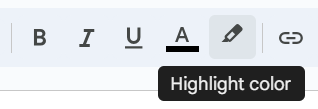
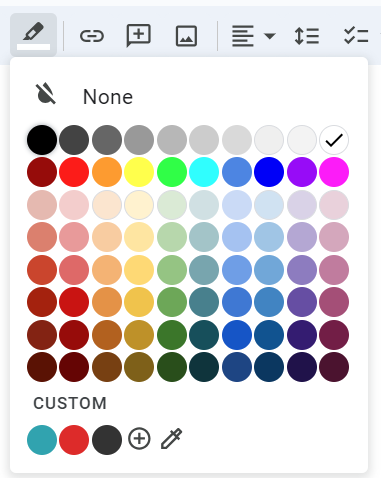
Highlighting text in a Google Doc is fairly simple. I have outlined the steps below.
Highlight Text in a Google Doc

Tuesday, March 7, 2023
Promoting STEM Through Literature
REMC has another great resource that I would like to highlight this week:
Promoting STEM Through Literature
Literature can be a great way to get students excited about science, technology, engineering, and math (STEM). Educators can use literature to get students actively involved in the design thinking process.
Each of the title shared on the website has a book card/lesson plan that includes a maker-STEM connection; pre, during, and post questions; and a design challenge that incorporates materials you could check out from your local REMC library. You can also check out each of the books from your local REMC library.
This year there will be 3 new books announced at the MACUL conference in Detroit, in March.
Tuesday, February 14, 2023
Wintertime Magnetic Poetry with Google Drawings
A couple of weeks ago I went to a great Professional Learning session offered by our local REMC, REMC 16, called Google Ignite. The session was by Eric Curts, G Suite Certified Trainer and Innovator.
During his session he showed a variety of great ways to use resources created by or sponsored by Google. We looked at some Google sites as well as the Google Workspace apps.
Google Drawings is a great Google app that is often under-utilized. It is great for activities that you would think of as 'one-slide' activities. Almost everything you can do in Google Slides you can do in Google Drawings, and vice versa.
One of the fun activities he showed us was Wintertime Magnetic Poetry. His blog post on the topic contains some great information and even contains a template link that you can copy and use.
How will you use this activity in your classroom?
Tuesday, November 8, 2022
Enabling and Using Dictation
Take a moment to consider your students.
Think about the ones who struggle to get their ideas onto paper. How about the students who struggle with spelling or have fine motor control issues. Do you have students in which English is not their first language?
Speech to Text is a tool that can help these students and many others. It is an Accessibility feature built into most devices today. Speech to Text is a tool that allows a writer to dictate their thoughts and ideas into a document.
Speech to Text, also known as Dictation, is available on Chromebooks and iPads. To enable and use dictation on these devices follow the instructions in the tutorials below.
Enabling and Using Dictation on a Chromebook (http://bit.ly/3GobetQ)
Enabling and Using Dictation on an iPad (http://bit.ly/3MntMLC)
Give it a try! Your students will love it (and so will you)!
Tuesday, November 1, 2022
Enabling and Using Text to Speech
Text to Speech is a tool that has multiple uses. It can be used to help with reading and writing. It can be a useful tool for struggling readers, English language learners, and readers with dyslexia as well. It can be used by students and teachers. Text to Speech is an available accessibility feature on both iPads and Chromebooks. Attached below are tutorials on how to enable and use them on these devices.
Enabling and Using Select-to-Speak on a Chromebook
Enabling and Using Select-to-Speak on a Chromebook
(https://bit.ly/3tkSaEI)
Enable Speak Selection on an iPad (https://bit.ly/iPadSpeakSelection)
Enable Speak Selection on an iPad (https://bit.ly/iPadSpeakSelection)
Tuesday, April 5, 2022
Assignment Calculator
Are you looking for a way to help your students manage his/her time with a big writing project?
The University of Minnesota has created an Assignment Calculator (https://www.lib.umn.edu/services/ac) that helps break down large writing projects into manageable chunks. You can set a timeline for a research paper, speech or lab report.
The timeline provided is broken down into small, daily steps. The timeline of steps can even be added into your Google Calendar to help you stay on track.
The University of Minnesota has created an Assignment Calculator (https://www.lib.umn.edu/services/ac) that helps break down large writing projects into manageable chunks. You can set a timeline for a research paper, speech or lab report.
The timeline provided is broken down into small, daily steps. The timeline of steps can even be added into your Google Calendar to help you stay on track.
Tuesday, September 14, 2021
Text-to-Speech - Chromebook & iPad
Text to Speech is a tool that has multiple uses. It can be used to help with reading and writing. It can be used by students and teachers.
I use text to speech to edit my writing. I listen to what I have written to help with sentence structure or misused words. It helps me improve my writing. I use text to speech to edit many of my blog posts.
Text to Speech can be a useful tool for struggling readers, English language learners, or readers with dyslexia as well. Using Text to Speech as a reading tool can help a variety of students and adults.
Most devices have text-to-speech built into the operating system. On a Chromebook it is called Select-to-Speak (https://bit.ly/38NeLjv). On an iPad it is called Speak Selection (https://bit.ly/2XmxZYD).
To view the tutorials on how to enable and use these features select the apporiate link above.
Try it out for yourself. I am sure you will love it!
~~~~~~~~~~
To use Text-to-Speech on a MacBook or iMac, follow these directions (https://bit.ly/2YusABr) to enable Text to Speech.
Tuesday, September 7, 2021
Speech-to-Text, Google Voice Typing
As a district we have moved to 1:1 enviornment. Every YCS student has access (or can have access) to a district issued device. Take a moment to consider your students. Think about the ones who struggle to get their ideas onto paper. How about the students who struggle with spelling or have fine motor control issues.
Speech to Text is a tool that can help these students and many others. Speech to Text is an Accessibility feature built into most computers today. It is a tool that allows a writer to dictate their thoughts and ideas into a document. Many Speech to Text options also allow you to speak the punctuation and a multitude of other voice commands for editing purposes.Google Docs has a built in Speech to Text option called Voice Typing.
Google offers a fairly comprehensive instructional guide for Voice Typing. The guide includes a list of languages supported by Voice Typing as well as a list of punctuation that can be voice enabled. The guide also includes a list of voice commands for formatting or editing your document in the sections under “Voice commands”. There are also some troubleshooting tips located near the end of the guide.
Voice Typing is also available on iPads via the microphone icon that appears next to the keyboard when typing.

Give it a try! Your students will love it (and so will you)!
~~~~~~~~~~
Voice Typing is also available as a built-in features on the staff MacBooks. Please reach out to me if you would like a tutorial on how to set it up for your use.
Tuesday, September 8, 2020
Story Shares
As many as 90 million teens and adults in America lack crucial literacy skills. Approximately 70% of all middle and high school students require some form of reading remediation. About 26% of 12th graders graduate reading below grade level. As students get older it becomes harder to find content that is both relevant for their age and readable at their level. Readers become unmotivated or disinterested, and often stop reading altogether.
Story Shares (https://www.storyshares.org/books) is a non-profit organization devoted to inspiring reading practices and improving literacy skills for individuals of all ages. Story Shares has a library full of books that are both compelling and approachable for struggling teen and young adult readers - Relevant Reads.
If you are interested in writing a book to share on Story Shares check out their Guidelines.
https://www.storyshares.org/files/guidelines-story-shares-july-2016.pdf
Story Shares (https://www.storyshares.org/books) is a non-profit organization devoted to inspiring reading practices and improving literacy skills for individuals of all ages. Story Shares has a library full of books that are both compelling and approachable for struggling teen and young adult readers - Relevant Reads.
If you are interested in writing a book to share on Story Shares check out their Guidelines.
https://www.storyshares.org/files/guidelines-story-shares-july-2016.pdf
Tuesday, December 17, 2019
Plagiarism Checker
I have been working with a student that attends classes at a local university. His teacher consultant, a colleague and friend of mine, was doing some research on free plagiarism checkers to use with her students when she discovered Free Online Plagiarism Checker Tool by Publi6 (https://freeplagiarismchecker.pro/en).
Students can use plagiarism detection software to check completed class work, essays or research assignments. Students can face penalties for plagiarism, including failing an assignment, being put on academic probation, or even face expulsion at some colleges and universities. Students should be aware that even unintentional plagiarism can be viewed as plagiarism and may be dealt with accordingly.
If you have students working on writing assignments or research projects, make sure they check for plagiarism before they turn it in for grading.
Tuesday, August 27, 2019
IRIS Center: Secondary Reading Instruction (Part 2)
Secondary Reading Instruction (Part 2): Deepening Middle School Content-Area Learning with Vocabulary and Comprehension Strategies (https://iris.peabody.vanderbilt.edu/module/sec-rdng2/#content)
This module examines some of the reasons that adolescents struggle with content-area text and overviews effective strategies teachers can use to improve the vocabulary and comprehension skills of students with a wide range of abilities and across a variety of subjects.
(est. completion time: 1.5 hours)
This module examines some of the reasons that adolescents struggle with content-area text and overviews effective strategies teachers can use to improve the vocabulary and comprehension skills of students with a wide range of abilities and across a variety of subjects.
(est. completion time: 1.5 hours)
Tuesday, August 20, 2019
IRIS Center: Secondary Reading Instruction (Part 1)
Secondary Reading Instruction (Part 1): Teaching Vocabulary and Comprehension in the Content Areas (https://iris.peabody.vanderbilt.edu/module/sec-rdng/)
This module describes how teachers can incorporate vocabulary and reading comprehension skills instruction into content-area lessons and will introduce you to a variety of effective practices—including the use of graphic organizers—to help students better understand what they read.
(est. completion time: 1.5 hours)
This module describes how teachers can incorporate vocabulary and reading comprehension skills instruction into content-area lessons and will introduce you to a variety of effective practices—including the use of graphic organizers—to help students better understand what they read.
(est. completion time: 1.5 hours)
Tuesday, March 26, 2019
Apps for Complex Needs: Emergent Literacy
The Learners with Complex App Wheel (https://www.callscotland.org.uk/common-assets/cm-files/posters/ipad-apps-for-learners-with-complex-additional-support-needs.pdf) from CALL Scotland (https://www.callscotland.org.uk/home/) is divided into 6 large sections, each of which may have smaller sections as well. The 6 larger sections are:
- Cognition
- Self-Regulation
- Creativity
- Communication
- Emergent Literacy
- Emergent Numeracy
Each section has a minimum of one app that is free. This week I am going to briefly talk about the free apps in the Emergent Literacy section.
Under the Emergent Literacy section of the App Wheel, two of the apps are free.
Bitsboard Flashcards & Games (https://itunes.apple.com/us/app/bitsboard-flashcards-games/id516842210?mt=8): Choose from tens of thousands of gorgeous flashcards and carefully curated lessons covering hundreds of topics. Customize cards to meet the specific learning needs of your students. Bitsboard even keeps track of every answer for every game, user, and board.
Fairytale Play Theatre (https://itunes.apple.com/gb/app/fairytale-play-theatre/id1076993415): This app lets you set the stage, choose your characters, and create and record your own story!
Under the Emergent Literacy section of the App Wheel, two of the apps are free.
Bitsboard Flashcards & Games (https://itunes.apple.com/us/app/bitsboard-flashcards-games/id516842210?mt=8): Choose from tens of thousands of gorgeous flashcards and carefully curated lessons covering hundreds of topics. Customize cards to meet the specific learning needs of your students. Bitsboard even keeps track of every answer for every game, user, and board.
Fairytale Play Theatre (https://itunes.apple.com/gb/app/fairytale-play-theatre/id1076993415): This app lets you set the stage, choose your characters, and create and record your own story!
Tuesday, June 12, 2018
InsertLearning
InsertLearning (https://goo.gl/wpKi1a) is a Google Extension that lets you transform any webpage into an interactive lesson. You can highlight text, insert post-its, ask questions, insert videos and so much more. It also integrates with Google Classroom directly from the Toolbar.
This extension was designed by two high school teachers who were looking for a way to let teachers turn the internet into interactive learning experiences for their students.
Download the Google Extension and go through the Tutorial today!
This extension was designed by two high school teachers who were looking for a way to let teachers turn the internet into interactive learning experiences for their students.
Download the Google Extension and go through the Tutorial today!
Tuesday, June 5, 2018
QR Codes
What is a QR code?
QR stands for Quick Response. According to Wikipedia, a QR code is "a specific matrix bar code (or two-dimensional code), readable by dedicated QR bar code readers and camera phones. The code consists of black modules arranged in a square pattern on a white background. The information encoded can be text, URL, or other data."
QR Codes have a large number of educational options available through the platform. It can be a great way to share information with your student as well as an interactive way for students to complete assignments.
Below is a link to a YouTube video on how to create Audio QR codes for classroom use.
Creat Audio QR Codes (http://bit.ly/audioqrcodevideo)
The following link contains some fun math techniques and strategies using QR codes.
Math QR Codes (https://goo.gl/iMny4a)
Check out the sites and explore the use of QR Codes for your classroom use.
QR stands for Quick Response. According to Wikipedia, a QR code is "a specific matrix bar code (or two-dimensional code), readable by dedicated QR bar code readers and camera phones. The code consists of black modules arranged in a square pattern on a white background. The information encoded can be text, URL, or other data."
QR Codes have a large number of educational options available through the platform. It can be a great way to share information with your student as well as an interactive way for students to complete assignments.
Below is a link to a YouTube video on how to create Audio QR codes for classroom use.
Creat Audio QR Codes (http://bit.ly/audioqrcodevideo)
The following link contains some fun math techniques and strategies using QR codes.
Math QR Codes (https://goo.gl/iMny4a)
Check out the sites and explore the use of QR Codes for your classroom use.
Tuesday, April 24, 2018
PaperRater.com
The best time to check your paper for errors is before you turn it in.
PaperRater.com also offers FREE plagiarism detection. Simply upload or copy and paste your paper into the box. Select your education level, 1st grade through Doctorate. Enable Plagiarism detection and select continue.
The free version does have some limitations:
Maximum 5 pages per paper (longer papers can be broken up into separate submissions)
Maximum 50 submissions per month
Maximum 10 plagiarism checks per month
Despite these limitations, it is a great tool for writers of all ages. Try it out for yourself the next time you have a paper to write.
Subscribe to:
Posts (Atom)