Creating effective quizzes can be time-consuming. What if there was an AI assistant that could help?
Conker is a user-friendly AI-powered platform that can streamline the process of creating quizzes and formative assessments, saving you time and effort. With a topic or learning standard Conker can generate unique quizzes with a variety of question types, including multiple choice, fill-in-the-blank, and true/false.
Conker even integrates seamlessly with Google Classroom, making distribution and grading a breeze.
Give Conker a try today!
Showing posts with label Productivity. Show all posts
Showing posts with label Productivity. Show all posts
Tuesday, May 21, 2024

Tuesday, May 14, 2024
Goblin Tools
Do you have students that struggle with large projects or to-do lists? Do you sometimes struggle with where to start on a task?
Goblin Tools can compile my brain-dump into a list of tasks or help tame the challenge of large tasks or assignments, especially for our neurodivergent students. This is a free online suite of AI-powered mini-apps designed to conquer chaos and boost productivity.
With Goblin Tools you can break big tasks down into manageable steps with 'Magic To Do" or estimate how long a a task might take with 'Estimator'. Do you need help verifying the tone of someones writing or does your writing need to be more formal? Check out 'The Judge' or 'Formalizer'.
Goblin Tools helps you get organized and achieve your goals, one bite-sized chunk at a time.
Goblin Tools can compile my brain-dump into a list of tasks or help tame the challenge of large tasks or assignments, especially for our neurodivergent students. This is a free online suite of AI-powered mini-apps designed to conquer chaos and boost productivity.
With Goblin Tools you can break big tasks down into manageable steps with 'Magic To Do" or estimate how long a a task might take with 'Estimator'. Do you need help verifying the tone of someones writing or does your writing need to be more formal? Check out 'The Judge' or 'Formalizer'.
Goblin Tools helps you get organized and achieve your goals, one bite-sized chunk at a time.
Tuesday, May 7, 2024
Canva in the Classroom
Have you been looking for a fun way to use technology in the classroom? Have you been wondering how you can use Canva with your students?
Canva is a great tool and they offer it free for educators. If you work in one of my local districts, access is available via Clever, for teachers, staff and students.
I recently attended MACUL and came back with a ton of ideas for using Canva in the classroom. Below is a short list of ways to use it in the classroom. Please reach out if you would like more details about any of the options listed below.
You can use Canva to create:
Teacher / Student Presentations
Group work activities
Interactive Graphic Organizers
Social Media Posts
Google Classroom Headers
Posters
Canva is a great tool and they offer it free for educators. If you work in one of my local districts, access is available via Clever, for teachers, staff and students.
I recently attended MACUL and came back with a ton of ideas for using Canva in the classroom. Below is a short list of ways to use it in the classroom. Please reach out if you would like more details about any of the options listed below.
You can use Canva to create:
Teacher / Student Presentations
Group work activities
Interactive Graphic Organizers
Social Media Posts
Google Classroom Headers
Posters
Newsletters
Flyers
Videos
Videos
Screen Recordings
Whiteboard activities
Comics
Whiteboard activities
Comics
storyboards
digital books
magazine covers
YouTube thumbnails
YouTube thumbnails
...and so many more options.
Tuesday, February 13, 2024
ISTE AI Guides
Are you interested in learning more about Artificial Intelligence and how you can use it in your classroom?
Although learning about tools are great, learning how to use them in the classroom, both with students and to help us, is essential to appropriate usage.
ISTE is the leading organization in teaching technology in the classroom. ISTE stands for International Society for Technology in Education. They are a nonprofit organization that provides resources, training and support that helps educators use technology to revolutionize learning. Their mission is to empower educators to reimagine and redesign learning through impactful pedagogy and meaningful technology use.
ISTE offers a series of Hands-On Project Guides for use in the classroom. Each guide contains information about AI and projects to do in the classroom.
I will highlight a different guide each week for the next 5 weeks. I hope you find them useful and informative. Next week we will take a look at Ethics and AI.
Tuesday, February 6, 2024
Diffit
If you work in any classroom, differentiating instruction can be a large part of your day. There is a new generative AI program that can help you with this task, Diffit.
Diffit lets you create differentiated resources from your exiting materials or from scratch. You can use Diffit to relevel text, customize vocabulary, translate, and mero.
Sign up for you (currently) free account today.
Tuesday, January 30, 2024
MagicSchool AI
Another new school-based generative AI program you might want to check out is Magic School AI.
This tool is designed specifically for educators. It has over 60 AI tools that can be used for things like composing professional emails to leveling or ordering text.
Check out Magic School AI to sign up for a (currently) free account.
Tuesday, January 16, 2024
Curipod
As teachers and school leaders, we often get pressured to implement new technologies in our classrooms. With this, one of the hardest challenges we face is guaranteeing that the technologies are being used responsibly and safely.
Curipod is one of these technologies. It is an AI designed specifically for teachers.
Curipod is an AI that is used to make interactive lessons filled with creativity, reflection, and critical thinking. It can be used to create interactive presentations on a myriad of educational topics for all grade levels.
One of the new lesson options is Curipod is Leveled Reading Passages with Comprehension Questions.

This new option is a great way to make reading fun! It is perfect for 3rd-5th grade reading levels, or foreign language learning.
Try using students' interests as a topic, such as their favorite game, movie, sport, or animal!
Tuesday, January 9, 2024
SchoolAI
Generative AI programs have exploded in the last year. Some are for personal and professional use, some are for educational use. The generative AI program I would like to highlight this week is SchoolAI.
SchoolAI is an all-in-one AI platform for your classroom. It was specifically designed with K12 students in mind. It has built-in monitoring and controls designed to help teachers guide and support their students.
SchoolAI is an all-in-one AI platform for your classroom. It was specifically designed with K12 students in mind. It has built-in monitoring and controls designed to help teachers guide and support their students.
Check out this video from SchoolAI with information on how to get started.
Tuesday, December 12, 2023
More FigJam
Last week I shared the announcement that Jamboard will be sunsetting in 2024 and the recommended alternative is FigJam. This week I would like to provide some training information for FigJam.
If you are unfamiliar with Eric Curts, he is the creator of the blog ControlAltAchieve, author of the book "Control Alt Achieve: Rebooting Your Classroom with Creative Google Projects", speaker, trainer, and a Technology Integration Specialist for SPARCC in North Canton, Ohio.
Eric has created a couple of great webinars on how to use FigJam that I want to share with you this week.
FigJam also has a YouTube channel full of short videos on how to use some of the features of FigJam.
Tuesday, December 5, 2023
FigJam, the Alternative to Jamboard
If you have not already heard, Google will be sunsetting Jamboard in 2024. They have recommended FigJam as the alternative. Like Jamboard, with FigJam you can brainstorm, align decisions, and collaborate —all in one place.
The following announcement and information has come directly from FigJam:
To make the transition as seamless as possible, FigJam has launched an importer that converts your Jams into FigJam files in seconds. Most importantly, all your Jamboard elements—including stickies, images, text and more—will still be fully editable in your new FigJam file so you can be up and running without losing a beat!
Here's how to get started:
Import your Jamboard files: Visit figma.com and click the “Import” button in the top right corner to start converting your Jamboards to FigJam files. To learn more, check out our importer tutorial or help center article.
Get started with FigJam: Find more ideas on how to use FigJam in your classroom with our tutorials and free template library.
Join a training: Meet the Figma for Education team during a free live training where you'll learn the basics, walk through classroom applications and ask any questions.
Tuesday, November 28, 2023
Formative
Although I usually provide tools or tricks more focused on student use and success, this one is great for teachers.
Formative is a tool that provides teachers with tools to engage, instruct, and assess their students.
Just a few of the things you can do with Formative include transforming a PDF or Google Doc into an auto-graded quiz, enhancing reading passages with questions, promoting higher-level thinking with advanced Math tools, and unleashing student creativity with the option of audio and video responses.
Check out Formative for yourself.
Tuesday, May 23, 2023
Filtering Data in a Google Sheet
Last week I shared a tutorial on how to sort information in a Google Sheet.
Something else that might be helpful in terms of viewing your Google Sheet information is filtering.
Below is a tutorial on how to filter your data in Google Sheets.
Tuesday, May 16, 2023
Sorting a Google Sheet
Google Sheets is a great place to store data of all types. You could use it as a database of books you have in your classroom library or a way to track grades and assignments. There are so many ways you can use Google Sheets.
After you have created your database of information though, how do you sort it?
Below is a tutorial on how to sort data in Google Sheets.
Tuesday, April 25, 2023
Closed Captioning in Google Slides
Google Slides offers a Closed Captions option. This can be used to help anyone read what is being said by the presenter or what is being said during a presentation video.
If the microphone is good enough it will also pick up any questions asked by audience members.
Closed Captioning in Google Slides can be added to the top or the bottom of the presentation. Adding the captioning to the top could be used in other ways as well. Think about having a presentation open and running above a video that doesn't have closed captioning available.
To use Closed Captions in Google Slides check out this easy to follow tutorial.
Google Slides - Closed Captions (https://bit.ly/43Q2YMg)
Tuesday, April 18, 2023
Pear Deck in Google Slides
Although Google Slides is a great way to add interest to a lecture or presentation, it can get monotonous or boring at times. Making a presentation more engaging and interactive is the best way to keep everyone's attention.
One way to make a Slides presentation more engaging and interactive is to use the Pear Deck Add-On for Google Slides (https://bit.ly/3CzccR2). Pear Deck allows everyone to have a voice and choice when answering questions, lets you see the slides show on an individual device so that you can follow along more easily, and allows teachers to do quick formative assessments to check for understanding.
To add the Pear Deck Add-On to Google Slides follow the instructions in the tutorial attached below.
Google: Install and Use Add-Ons
(https://bit.ly/38on9XO)
Tuesday, April 4, 2023
Google Docs: Highlighting Text
Highlighting text inside of Google Doc can be used in a variety of ways in the classroom. It can be used as a way to help students focus and as a way to help them learn the importance of certain information.
Students could highlight:
- key or vocab words
- main sentence
- parts of speech
- parts of a math story problem
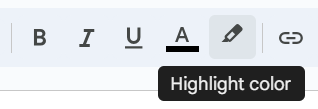
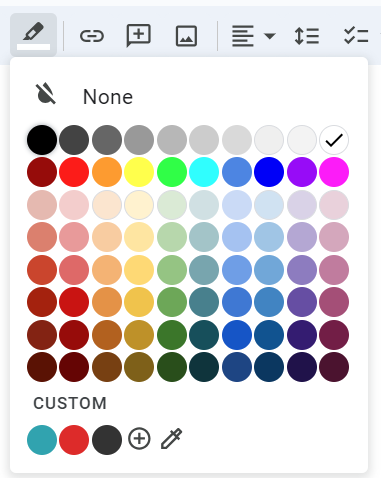
Highlighting text in a Google Doc is fairly simple. I have outlined the steps below.
Highlight Text in a Google Doc

Tuesday, February 28, 2023
21Things4Students
Last week I wrote about the REMC Association of Michigan. As I said in that post, they have a wonderful website full of resources!
One of the resources that I would like to highlight is the 21Things4Students. This site offers FREE activities to help you integrate technology into the middle school classroom curriculum (grades 5-9). It will provide you with information on how to build knowledge and learn new tech skills for the 21st century. 21Things4Students will also help you teach kids how to be safe and secure online!
Tuesday, January 31, 2023
Postlight Reader
Postlight Reader is a Google Extension that allows you to remove webpage noise and clutter from an article to make it easier for students to read.


Postlight Reader allows you to make minor changes to font style, size and light/dark background options.


Not only is this extension great for students, teachers can also use it for clearing out the clutter on articles that need to be printed or shared with others.
Tuesday, January 24, 2023
Keyboard Shortcuts for Chromebooks
Keyboard shortcuts make my life so much easier. I love them.
I found a great article that lists some great keyboard shortcuts for Chromebooks.
I found a great article that lists some great keyboard shortcuts for Chromebooks.
Check out KEYBOARD SHORTCUTS FOR KIDS (https://www.coderkids.com/blog/keyboard-shortcuts-for-kids) from CoderKids.
Tuesday, January 17, 2023
Card Games in the Classroom
Last week I talked about using board games in the classroom. They can be used for recess but are also a great way to practice a variety of skills.
You can also use a deck of playing cards to help students show skills they know and have learned related to IEP goal and objectives or state academic standards. Here are 16 Card Games That Will Turn Your Students Into Math Aces (https://www.weareteachers.com/math-card-games/) and that you can use to test math skills in your classroom.
You can also check out 18 Fifth Grade Math Games for Teaching Fractions, Decimals, and More (https://www.weareteachers.com/fifth-grade-math-games/) which can be used for teaching and assessment as well.
Subscribe to:
Posts (Atom)