Showing posts with label Chromebook. Show all posts

Tuesday, November 21, 2023

Live Captions in Chrome

Chrome now offers live captions, it can automatically generate real-time captions directly in the browser. With a couple of quick settings adjustments you can automatically create captions for audio and video.

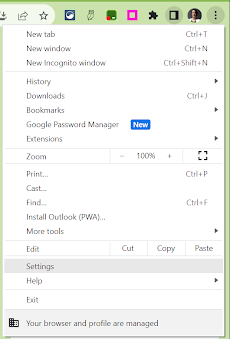
In the Chrome browser, go to the 3-dots menu in the top right corner.


Find ‘Settings’ in the dropdown menu.


In the menu on the left, open Accessibility.
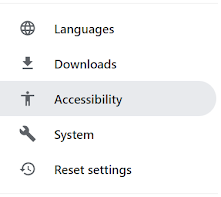


Toggle on ‘Live Caption’.



You can select a preferred language (from a very short, very limited list), delete a caption language from your account and choose to ‘Hide profanity’ in the settings.


Tuesday, November 14, 2023

Reading Mode in Chrome

Reading mode in Chrome browser is now available on all Chromebooks.  Customize your reading experience with reading mode.  It allows you to more easily focus on the text, reduce distractions from images and videos, adjust the font and size, the spacing and the background color for any article or webpage you are reading.


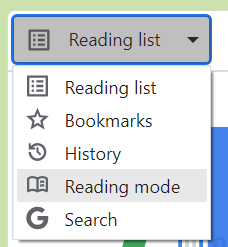
To access Reading mode, open the reading list icon in the extensions bar.


On the dropdown that says ‘reading list’ select ‘reading mode’.


Adjust the size of the reading window using the 2 vertical, parallel lines on the left.


Adjust, from a limited set of options, the font style, size, spacing and background color.


Tuesday, April 4, 2023

Google Docs: Highlighting Text

Highlighting text inside of Google Doc can be used in a variety of ways in the classroom.  It can be used as a way to help students focus and as a way to help them learn the importance of certain information.  

Students could highlight:

  • key or vocab words
  • main sentence
  • parts of speech
  • parts of a math story problem
Highlighting text in a Google Doc is fairly simple.  I have outlined the steps below.

Highlight Text in a Google Doc

Select the text you want to highlight.

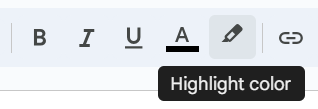
Click on the Highlight button in the toolbar.

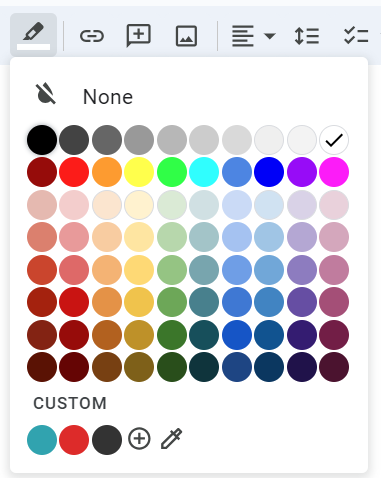
Select the color you would like to use.

Repeat this process for additional text throughout the document, as needed.  


Tuesday, January 31, 2023

Postlight Reader

Postlight Reader is a Google Extension that allows you to remove webpage noise and clutter from an article to make it easier for students to read.  

Mercury Reader Extension - Off          Mercury Reader Extension -On

Postlight Reader allows you to make minor changes to font style, size and light/dark background options.  

Mercury Reader Extension - Settings icon     Mercury Reader Extension - Settings Menu

Not only is this extension great for students, teachers can also use it for clearing out the clutter on articles that need to be printed or shared with others.  

Tuesday, January 24, 2023

Keyboard Shortcuts for Chromebooks

Keyboard shortcuts make my life so much easier.  I love them.  

I found a great article that lists some great keyboard shortcuts for Chromebooks. 
Check out KEYBOARD SHORTCUTS FOR KIDS (https://www.coderkids.com/blog/keyboard-shortcuts-for-kids) from CoderKids

Tuesday, December 13, 2022

SignUp Captioning

Do you know some who is hearing impaired and could use sign language when watching shows and movies?
Are you trying to learn or improve your sign language skills?

The SignUp Google Chrome Extension overlays sign language (both American and British) interpretation on streaming platforms, such as Disney+ and Netflix, for more accessible captioning.

To learn about SignUp visit their website at https://www.signupcaptions.com/

Tuesday, November 15, 2022

Add a Quick Access World Language Keyboard on a Chromebook

Do you have students in you classroom in which English is not his/her first language?

You can update the settings on a Chromebook to a variety of world languages, allowing students to type on the keyboard in his/her native language.

Follow this tutorial to Add a Quick Access World Language Keyboard on a Chromebook.

Tuesday, November 8, 2022

Enabling and Using Dictation

 Take a moment to consider your students. 

Think about the ones who struggle to get their ideas onto paper. How about the students who struggle with spelling or have fine motor control issues.  Do you have students in which English is not their first language?


Speech to Text is a tool that can help these students and many others. It is an Accessibility feature built into most devices today. Speech to Text is a tool that allows a writer to dictate their thoughts and ideas into a document. 


Speech to Text, also known as Dictation, is available on Chromebooks and iPads.  To enable and use dictation on these devices follow the instructions in the tutorials below.


Enabling and Using Dictation on a Chromebook (http://bit.ly/3GobetQ)


Enabling and Using Dictation on an iPad (http://bit.ly/3MntMLC)


Give it a try! Your students will love it (and so will you)!


Tuesday, November 1, 2022

Enabling and Using Text to Speech

Text to Speech is a tool that has multiple uses. It can be used to help with reading and writing.  It can be a useful tool for struggling readers, English language learners, and readers with dyslexia as well. It can be used by students and teachers. Text to Speech is an available accessibility feature on both iPads and Chromebooks. Attached below are tutorials on how to enable and use them on these devices.

Enabling and Using Select-to-Speak on a Chromebook 
(https://bit.ly/3tkSaEI)

Enable Speak Selection on an iPad   (https://bit.ly/iPadSpeakSelection)

Tuesday, October 5, 2021

Mercury Reader

Mercury Reader is a Google Extension that allows you to remove webpage noise and clutter from an article to make it easier for students to read.  

Mercury Reader Extension - Off          Mercury Reader Extension -On

Mercury Read allows you to make minor changes to font style, size and light/dark background options.  

Mercury Reader Extension - Settings icon     Mercury Reader Extension - Settings Menu

Mercury Reader also has a keyboard shortcut 
which allows you to switch the Reader on and off within any article:
Cmd + Esc for Mac users
Alt + ` for Windows users

Tuesday, September 28, 2021

Tab Scissors and Tab Glue

Tab Scissors and Tab Glue are 2 of my FAVORITE extensions. These 2 extensions go hand-in-hand and are useful for a variety of reasons.
 
Image of Tab Scissors Extension Tab Scissors lets you separate 2 tabs within one Google Chrome browser window. Tab Scissors splits the tabs into 2 smaller, equal sized windows allowing you to compare information side-by-side. The extension separates your window at the active tab and the one to its immediate left. If you have additional tabs open, the ones on the left stay in the left window and the ones on the right stay in the right window.

Image of Tab Glue Extension Tab Glue allows you to quickly put all of your tabs back together, into one large window. Your tabs remain in their original order. Tab Glue simply works in the reverse of Tab Scissors.

Tuesday, September 21, 2021

Google Extensions

Chromebooks are similar to a computer but different in a few ways, primarily they have limited storage space. To allow a Chromebook to function more like a standard computer Google created Extensions. Extensions are small software programs that customize the browsing experience. They can be used on a Chromebook as well as in the Chrome browser on a computer. Extensions modify and enhance the functionality of Google Chrome.
To install a Google Extension, visit the Google Web Store.

Over the course of the next few weeks, I will be highlighting a series of Extensions that I use on an almost daily basis. I hope you and your students find them as useful as I have.

Tuesday, November 3, 2020

Must-Have Google Slides Add-Ons for Teachers

This weeks video comes from Sam Kary, New EdTech Classroom.

In his video, Must-Have Google Slides Add-Ons for Teachers (https://youtu.be/jvpU2qPAt-k), Sam talks about 9 helpful Google Slides Add-Ons.  

1. Unsplash
2. Extensis Fonts
3. Flaticon
4. Slides Translator
5. Easy Accents
6. Hypatia
7. Pear Deck
8. Slido
9. Nearpod

If you have never looked through or installed an add-on it is simple.  I have created a very quick tutorial to show you how.  

Google: Install an Add-On (https://bit.ly/38on9XO)

Tuesday, March 17, 2020

Otter Voice Meeting Notes

Technology is improving everyday and it seems like nothing is improving faster than speech to text.  AISence Inc. is a startup on a mission to make voice conversations more valuable for everyone.

AISence has created a program called Otter, that will now record and take meeting notes for you in real-time.  Otter helps you capture and manage verbal communication through meetings, video conferences, school lectures, and other important conversations.

There is a free version of Otter and a Premium version.  With the free version you get 600 minutes of transcription every month and the plan does not expire.  The Premium plan offers 6,000 minutes per month.

Image of Otter iOS app icon.Download Otter Voice Meeting Notes for:
Android  (https://play.google.com/store/apps/details?id=com.aisense.otter)
iOS  (https://apps.apple.com/us/app/otter-ai/id1276437113?ls=1)
Or, create an account in your Google Chrome browser at otter.ai.

To learn more about Otter go to otter.ai.

Tuesday, November 12, 2019

Classroom Noise Monitor Apps

If you don't already follow We Are Teachers (https://www.weareteachers.com/) you might want to consider it.  They have a TON of classroom ideas and free printables available.  I do follow We Are Teachers and I get an email from them weekly.  

This weeks email included a short list of Classroom Noise Monitor Apps that I thought would be helpful in a number of situations.  Most of the "apps" are actually websites, with one Google app thrown in.  The websites work on all computers, Chromebooks and tablets (iPad and Android).  These apps could be used by you, as the teacher, for the whole class or by individual students to help him/her monitor his/her own noise level. 
Please take the time to read the article and try one out with your classroom today.

5 Classroom Noise Monitor Apps to Help Calm the Chaos (https://tinyurl.com/y6p8aoa2) 
by Jill Staake 

Tuesday, November 5, 2019

Claro MagX

Claro MagX is a FREE app that turns your wireless device into a powerful high-definition visual magnifier. It is available for iOS, Android and for Chromebook.

There are NO in-app purchases and NO in-app advertising.

Claro MagX offers a wide range of magnification (maximum 16x times zoom), high contrast and color viewing options to make the text easier to read.

It is easy to use, simply pinch to zoom in and out. You can also take a photo, freeze the image and choose which mode you prefer for viewing. Claro MagX offers four options for viewing: normal, invert, two-color and greyscale.

Check out Claro MagX for yourself and learn about all of the viewing options through exploration.

Claro MagX for Android(https://tinyurl.com/yy3tkvv2)

Claro MagX for iOS
(https://tinyurl.com/yxzrmtxl)

Claro MagX for Chrome
(https://tinyurl.com/y458qdaj)

Tuesday, September 24, 2019

Installing Google Extensions, Apps and Add-ons

Google has a variety of "add-on" features, many of which are free. They have Google Extensions, Google Apps and Google Add-ons. I review a number of these great features as a part of this Blog. Attached below are instructions for how to add these wonderful features for use in your Google browser or with the G-Suite of applications.

Install a Google Extension or Google App 

(https://tinyurl.com/y4vpgjpd)

Install a Google Add-on 

(https://tinyurl.com/y5xld2bh)


Tuesday, November 27, 2018

EDU in 90

Google for Education has created a video series called EDU in 90.  Each episode is under 4 minutes in length and focuses on product updates, new programs, and helpful resources for the classroom.   New episodes are released three times a month and are important topics for educators, administrators, and school leaders.

The videos are available on the Google for Education YouTube Channel (https://goo.gl/HzLhdx).

Subscribe to the Google for Education YouTube channel so don't miss an episode!

Tuesday, June 12, 2018

InsertLearning

InsertLearning (https://goo.gl/wpKi1a) is a Google Extension that lets you transform any webpage into an interactive lesson.  You can highlight text, insert post-its, ask questions, insert videos and so much more.  It also integrates with Google Classroom directly from the Toolbar.

This extension was designed by two high school teachers who were looking for a way to let teachers turn the internet into interactive learning experiences for their students.  

Download the Google Extension and go through the Tutorial today!

Tuesday, April 10, 2018

Free Audiobooks for Teens is back!

Overdrive has again paired with SYNC to offer 13 weeks of Free Audiobooks for Teens!  
Individuals will have the opportunity to download 2 FREE audiobooks each week, starting April 26th and running through July 25th!
 
You can register and sign up for e-mail reminders or text reminders at http://www.audiobooksync.com/.


Listen to the books by downloading the Overdrive app.  The app is available for iPhone®, iPad®, Android, Chromebook, Windows 8 & 10 and Kindle Fire HD.

Check out the SUMMER 2018 SYNC TITLE PAIRINGS (https://audiobooksync.com/2018-sync-titles/) page for the list of available books this summer.

For younger students have them check out the audio book options I discussed in a previous blog post,
Audio books (https://at-udl.blogspot.com/2016/12/audio-books.html)


This is a great opportunity to provide some fun summer reading for our students!