Showing posts with label Chrome. Show all posts

Tuesday, November 21, 2023

Live Captions in Chrome

Chrome now offers live captions, it can automatically generate real-time captions directly in the browser. With a couple of quick settings adjustments you can automatically create captions for audio and video.

In the Chrome browser, go to the 3-dots menu in the top right corner.


Find ‘Settings’ in the dropdown menu.
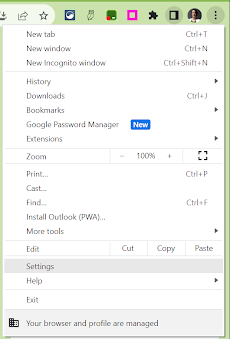


In the menu on the left, open Accessibility.
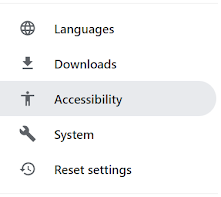


Toggle on ‘Live Caption’.



You can select a preferred language (from a very short, very limited list), delete a caption language from your account and choose to ‘Hide profanity’ in the settings.


Tuesday, November 14, 2023

Reading Mode in Chrome

Reading mode in Chrome browser is now available on all Chromebooks.  Customize your reading experience with reading mode.  It allows you to more easily focus on the text, reduce distractions from images and videos, adjust the font and size, the spacing and the background color for any article or webpage you are reading.


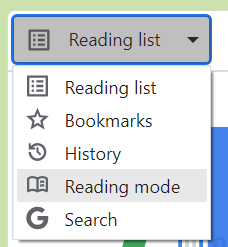
To access Reading mode, open the reading list icon in the extensions bar.


On the dropdown that says ‘reading list’ select ‘reading mode’.


Adjust the size of the reading window using the 2 vertical, parallel lines on the left.


Adjust, from a limited set of options, the font style, size, spacing and background color.


Tuesday, April 18, 2023

Pear Deck in Google Slides

Although Google Slides is a great way to add interest to a lecture or presentation, it can get monotonous or boring at times.  Making a presentation more engaging and interactive is the best way to keep everyone's attention.  

One way to make a Slides presentation more engaging and interactive is to use the Pear Deck Add-On for Google Slides (https://bit.ly/3CzccR2).  Pear Deck allows everyone to have a voice and choice when answering questions, lets you see the slides show on an individual device so that you can follow along more easily, and allows teachers to do quick formative assessments to check for understanding.  

To add the Pear Deck Add-On to Google Slides follow the instructions in the tutorial attached below.

Google: Install and Use Add-Ons

(https://bit.ly/38on9XO)

Tuesday, April 4, 2023

Google Docs: Highlighting Text

Highlighting text inside of Google Doc can be used in a variety of ways in the classroom.  It can be used as a way to help students focus and as a way to help them learn the importance of certain information.  

Students could highlight:

  • key or vocab words
  • main sentence
  • parts of speech
  • parts of a math story problem
Highlighting text in a Google Doc is fairly simple.  I have outlined the steps below.

Highlight Text in a Google Doc

Select the text you want to highlight.

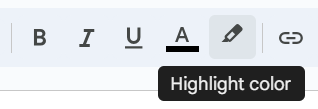
Click on the Highlight button in the toolbar.

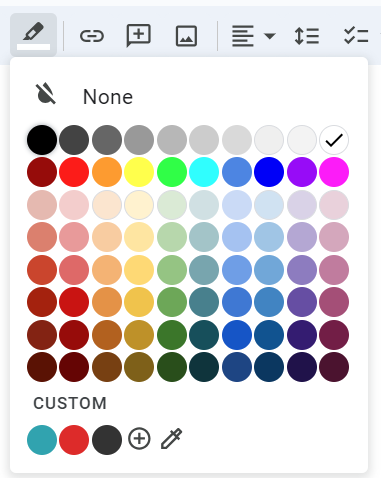
Select the color you would like to use.

Repeat this process for additional text throughout the document, as needed.  


Tuesday, January 31, 2023

Postlight Reader

Postlight Reader is a Google Extension that allows you to remove webpage noise and clutter from an article to make it easier for students to read.  

Mercury Reader Extension - Off          Mercury Reader Extension -On

Postlight Reader allows you to make minor changes to font style, size and light/dark background options.  

Mercury Reader Extension - Settings icon     Mercury Reader Extension - Settings Menu

Not only is this extension great for students, teachers can also use it for clearing out the clutter on articles that need to be printed or shared with others.  

Tuesday, December 13, 2022

SignUp Captioning

Do you know some who is hearing impaired and could use sign language when watching shows and movies?
Are you trying to learn or improve your sign language skills?

The SignUp Google Chrome Extension overlays sign language (both American and British) interpretation on streaming platforms, such as Disney+ and Netflix, for more accessible captioning.

To learn about SignUp visit their website at https://www.signupcaptions.com/

Tuesday, May 17, 2022

Tar Heel Gameplay

Tar Heel Gameplay (https://tarheelgameplay.org/) is a collection of free, easy-to-play, and accessible games. Each game is speech enabled and may be accessed using multiple interfaces, including touch screens and up to 3 switches.

Tuesday, March 8, 2022

Visor

Visor (https://bit.ly/3KVq0b7) is a Google Chrome extension that is a screen dimmer and reading aid. Visor may also help with fluency, eye-strain, concentration and comprehension whilst reading.
 
Visor offers overlays and point of focus features that may assist users with visual perceptual difficulties such as Dyslexia, Scotopic Sensitivity Syndrome and Visual Stress. 

Visor also uses a point of focus feature, designed to help further reduce visual confusions and the tendency to skip lines. Visors horizontal focal point tracks your mouse, giving you full focus to the content being read, while reducing the visual noise of the surrounding page.

Tuesday, October 5, 2021

Mercury Reader

Mercury Reader is a Google Extension that allows you to remove webpage noise and clutter from an article to make it easier for students to read.  

Mercury Reader Extension - Off          Mercury Reader Extension -On

Mercury Read allows you to make minor changes to font style, size and light/dark background options.  

Mercury Reader Extension - Settings icon     Mercury Reader Extension - Settings Menu

Mercury Reader also has a keyboard shortcut 
which allows you to switch the Reader on and off within any article:
Cmd + Esc for Mac users
Alt + ` for Windows users

Tuesday, September 28, 2021

Tab Scissors and Tab Glue

Tab Scissors and Tab Glue are 2 of my FAVORITE extensions. These 2 extensions go hand-in-hand and are useful for a variety of reasons.
 
Image of Tab Scissors Extension Tab Scissors lets you separate 2 tabs within one Google Chrome browser window. Tab Scissors splits the tabs into 2 smaller, equal sized windows allowing you to compare information side-by-side. The extension separates your window at the active tab and the one to its immediate left. If you have additional tabs open, the ones on the left stay in the left window and the ones on the right stay in the right window.

Image of Tab Glue Extension Tab Glue allows you to quickly put all of your tabs back together, into one large window. Your tabs remain in their original order. Tab Glue simply works in the reverse of Tab Scissors.

Tuesday, September 21, 2021

Google Extensions

Chromebooks are similar to a computer but different in a few ways, primarily they have limited storage space. To allow a Chromebook to function more like a standard computer Google created Extensions. Extensions are small software programs that customize the browsing experience. They can be used on a Chromebook as well as in the Chrome browser on a computer. Extensions modify and enhance the functionality of Google Chrome.
To install a Google Extension, visit the Google Web Store.

Over the course of the next few weeks, I will be highlighting a series of Extensions that I use on an almost daily basis. I hope you and your students find them as useful as I have.