Showing posts with label Add-on. Show all posts

Tuesday, April 18, 2023

Pear Deck in Google Slides

Although Google Slides is a great way to add interest to a lecture or presentation, it can get monotonous or boring at times.  Making a presentation more engaging and interactive is the best way to keep everyone's attention.  

One way to make a Slides presentation more engaging and interactive is to use the Pear Deck Add-On for Google Slides (https://bit.ly/3CzccR2).  Pear Deck allows everyone to have a voice and choice when answering questions, lets you see the slides show on an individual device so that you can follow along more easily, and allows teachers to do quick formative assessments to check for understanding.  

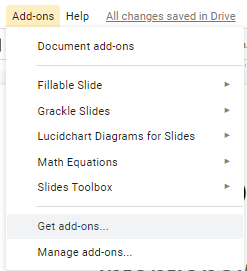
To add the Pear Deck Add-On to Google Slides follow the instructions in the tutorial attached below.

Google: Install and Use Add-Ons

(https://bit.ly/38on9XO)

Tuesday, April 13, 2021

AVA - Web Captioner

Are you looking for a program that will caption in-person and online conversations?

Ava Closed Captions (Ava.me) is available for Mac, Windows, Web, Android, and iOS devices. With just one click you can display instant captions, no matter what tool you use.

Ava offers free, unlimited automatic captions powered by the best-in-class speech recognition software.  Ava uses AI to transcribe instantly what people say.  With Ava you can caption live conversation, online meetings or even online videos.

Wednesday, February 3, 2021

Using Pear Deck to Make Your Google Slides Presentations Interactive

Pear Deck is a tool that can be used for a variety of educational options.  I found a great video by Stacey Roshan (http://bit.ly/2YDAN3h) about how to use Pear Deck to make Google Slides presentations interactive.  The video will show you how to install the Pear Deck add-on, how to add various types of slides, how to customize draggable slides and what the presentation looks like from both the teacher and student end.  

Getting Started with Pear Deck to Make Your Google Slides Presentations Interactive. (https://youtu.be/9PJgsa-fnmA)

Stacey also has a great follow up video with tips for using Pear Deck as a student paced, asynchronous option for learning.  

Tuesday, November 3, 2020

Must-Have Google Slides Add-Ons for Teachers

This weeks video comes from Sam Kary, New EdTech Classroom.

In his video, Must-Have Google Slides Add-Ons for Teachers (https://youtu.be/jvpU2qPAt-k), Sam talks about 9 helpful Google Slides Add-Ons.  

1. Unsplash
2. Extensis Fonts
3. Flaticon
4. Slides Translator
5. Easy Accents
6. Hypatia
7. Pear Deck
8. Slido
9. Nearpod

If you have never looked through or installed an add-on it is simple.  I have created a very quick tutorial to show you how.  

Google: Install an Add-On (https://bit.ly/38on9XO)

Tuesday, September 24, 2019

Installing Google Extensions, Apps and Add-ons

Google has a variety of "add-on" features, many of which are free. They have Google Extensions, Google Apps and Google Add-ons. I review a number of these great features as a part of this Blog. Attached below are instructions for how to add these wonderful features for use in your Google browser or with the G-Suite of applications.

Install a Google Extension or Google App 

(https://tinyurl.com/y4vpgjpd)

Install a Google Add-on 

(https://tinyurl.com/y5xld2bh)


Tuesday, April 30, 2019

Grackle Accessibility Checker - Guest Writer

Grackle Accessibility Checker (https://goo.gl/EdxT9Z)

On January 18, 2017 (amended January 22, 2018), the United States Access Board (https://www.access-board.gov/) updated their Section 508 Standards (https://www.access-board.gov/guidelines-and-standards/communications-and-it/about-the-section-508-standards) as it applies to information and communications technology (https://www.access-board.gov/guidelines-and-standards/communications-and-it) used by or provided by government agencies, including public schools. To help all of us navigate the requirements, GrackleDocs, Inc. (https://www.grackledocs.com/) has a tool we can use to check accessibility for free, either as an add-on to our Google Docs, Sheets, and Slides, or as a Chrome extension for other web content. Sounds great! How do I get it?

Chrome Extension

While logged into your district Google account, browse to the following link, then click the blue Add to Chrome button, and accept the terms:

https://chrome.google.com/webstore/search/grackle?utm_source=chrome-ntp-icon

Click Add to Chrome
When Grackle is active on a tab with editable G-Suite content, there will be an icon that looks like a bird in silhouette against a dark blue background near the right end of the URL bar. Click the icon to grade the accessibility of the current browser tab. If the current tab is not editable G-Suite content, the bird silhouette will appear against gray.


Click to grade the accessibility of the current page.

indicates that this page cannot be graded for accessibility

Docs, Sheets, and Slides

Within an open Doc, Sheet, or Slides file, click Add-ons → Get add-ons… in the menu. In the Add-ons search box, type grackle, then click the blue +FREE button, and accept the terms.

Get add-ons

Add-on for Grackle

To use Grackle to analyze your file for accessibility, click Add-ons → Grackle [Docs / Sheets / Slides] → Launch. A window will appear on the right side of the screen that will contain, within moments, an accessibility analysis of your file. Welcome to the world of accessibility!

Note that with the free version of Grackle, the tagged PDF export feature from within the analysis window is limited to the first 30 days of use. However, you can still export PDF files from the menu using File → Download as → PDF Document (.pdf). Some features of the reports, such as suggestions for remediation, may also be limited in the free version.

Tuesday, April 3, 2018

Google Sheets Add-on: Save as Doc

There are a number of reasons data may be saved as a Google Sheet.  Maybe you created a Google Form for a quiz or maybe a Sheet was the easiest way to input the information from a paper-based survey.  What ever the reason, there are just as many reasons why you might want to view the information in a Google Doc as well.  

'Save as Doc' allows you to do this very thing.  'Save as Doc' allows you to take information in a Google Sheets spreadsheet and view it as a Google Document. This is a great tool for making lengthy cell text readable.  This can be a great way to sort out individual responses to a quiz or a survey.

For quick instructions on how to use 'Save as Doc' please follow the instructions in the link below.

'Save as Doc' instructions.
(https://docs.google.com/document/d/10lJadrHRUrEH9qZrzsB2EuZE5CHenVRO07cmnCE4P04/view)

Tuesday, February 6, 2018

Sudoku Sheets

Need a break from your work? 
Want to put some fun, easy to create puzzles in your math centers?

Sudoku Sheets may be the answer you are looking for.  You can quickly and easily create Sudoku puzzles using Sudoku Sheets.  This Add-on lets you create a Sudoku puzzle in Easy, Medium, Hard, or Insane.  You can also use this Add-on to create our own Sudoku.  The add-on will let you check the puzzle as well as solve it, right in Google Sheets.  As a teacher this would allow you to make the puzzle and the answer key (but wouldn't it me more fun to solve it yourself 😊 ). 


It is cold and snowy here in Michigan.  Let's warm up the classroom with some fun with Sudoku!

Tuesday, November 28, 2017

Rhyme Finder

Writing a poem?
Trying to think of some lyrics?
Looking for a rhyming word for any type of project?

Rhyme Finder is a Google Docs add-on that allows you to select words in your document and find rhyming words.  It is a fun add-on that could have a huge impact on writing.


~~~~~~~~~~~~~~~~~~~~~~~~~~~~~~~~~~~~~~~~~~~~~~~~

Google Docs has some great add-ons to help fill in some of the features gaps that exist in the base Google programming.  Please review my previous How to Find post for more instructions.   

Tuesday, August 8, 2017

EasyBib

In a previous Blog post I discussed Cite this for Me: Web Citer, a Google Extension.  Another options to help with creating a bibliography would be EasyBib!

EasyBib is a Google Docs add-on that allows you to create a bibliography, automatically.  You can cite books, journal articles and websites simply by entering the title or URL.  

This add-on lets you format in MLA, APA, Chicago, Harvard, and over 7K other styles.  When you have finished adding your sources, EasyBib will generate your bibliography, alphabetize your citations and add them to the end of your paper, with just a couple of mouse clicks.   


Select Manage Bibliography from the drop-down and begin filling in the information in the sidebar.


Tuesday, August 1, 2017

Google Docs add-on Highlight Tool

This add-on lets you highlight text directly in a Google Doc, using a convenient sidebar. Any information that opens as a Google Doc, or can be opened as a Google Doc, can use the Highlight Tool.

Open the sidebar by choosing "Highlight Tool > Start". Then create highlighters and use them to highlight selected text. 


Highlights can be named by the color you are using or by the function of each different color (e.g. noun, verb, adj. or topic sentence, supporting fact, conclusion).


This is a test of Google Highlight tool add-on.


There is an almost unlimited wheel of colors.


Colors can be named based on color, or use.


"Share Highlighters" and "Import Highlighters" allow sharing of highlighters between different users.


Tuesday, July 25, 2017

Doc Tools, a Google Add-On for Google Docs

Doc Tools is a set of single-click tools that let you perform a number of varied actions while working in your text.


You can perform a few "quick" actions from the drop down by highlighting the text and selecting a feature:

- Arrange your table rows or list items in ascending or descending alphabetical order. 
- Convert numbers to words or vice versa
- Quickly change the case of your words, in multiple different formats:
     - change it to all uppercase or lowercase 
     - capitalize each word
     - capitalize each sentence 
     - toggle case 


Or, you can have a side bar of actions by selecting Start from the drop down:
- Increase and Decrease font until you find the right size
- Highlight important information
- Arrange your table rows or list items in ascending or descending alphabetical order. 
- Convert numbers to words or vice versa
- Quickly change the case of your words, in multiple different formats: 
     - change it to all uppercase or lowercase 
     - capitalize each word
     - capitalize each sentence 
     - toggle case 


Tuesday, July 18, 2017

formLimiter

formLimiter lets you automatically set Google Forms to stop accepting responses after a maximum number of responses has been reached or at a specific date and time.  This add-on is great for time-based assignments or for registrations with limited seats or availability.




It is easy to setup.  Simply launch the add-on, set the limit type, and save.

The Limit types are:

  • Specific date and time
    • Timer will shut off form on the specified date and time, down to the minute.
  • Maximum number of responses
    • Form shuts off once the set limit has been reached. 


Tuesday, June 27, 2017

How to Find: Google Add-ons

In comparison to Microsoft Office, the Google Suite of apps has always been considered less powerful. Google has been adding features into their software to make it more compatible to Microsoft. Some of these features are available though what Google calls Add-ons.

Google Add-ons are items that enhance the functioning of the Google Docs, Sheets, and Forms.  
Add-ons are created by developers to give you features similar to Microsoft Office.

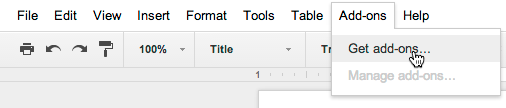
To browse through add-ons for Docs, Sheets and Forms, select Get add-ons in the Add-ons menu of any open Doc, Sheet or Form.


Once you install an add-on it will become available across all of your Docs, Sheets and Forms and you can start using it right away.


Follow my posts this summer as I explore some great Add-ons for Google Docs, Sheets and Forms.

Tuesday, May 23, 2017

Flippity - Guest Writer

I have the opportunity to work with a wonderful team on individuals.  One member of the team is our schools Instructional Technology Specialist, Clark Rodeffer.  We each write articles for our schools Technology Newsletter.  In a recent newsletter Clark wrote a great article about Flippity.  

Clarks article starts like this:

Are you looking for an easy way to make virtual flashcards, mix & match grids, quiz shows, tournament brackets, and more? Flippity is a free Google Sheets add-on with which you and your students can create engaging web-based activities. Here's how to get started.

Please click the link to learn more about Flippity!

Tuesday, February 21, 2017

Flubaroo - for teachers, not students

The ability to use Google Forms to create multiple choice assignments or short answer quizzes and tests is a great tool.  You create the assignment and the results come to you in a Google Sheet.  This is a great way to grade and create graphs to compare data.  Imagine if grading this was even faster and easier. 

Flubaroo


Flubaroo can quickly grade and analyze performance on multiple choice questions and fill in assignments automatically!  

Within a minute you'll be able to: 
  • Get scores for each student
  • Identify students in need of extra help. 
  • View the average score and a histogram of scores. 
  • Quickly identify questions which a majority of the students missed. 
  • Share scores with students via email or Google Drive
  • Add optional notes to the class and/or to each student. 
  • Assign your own score to open-ended questions. 
  • Send stickers and badges when you share grades. 

If you are already using Google Forms to create assignments you must get Flubaroo to help with your grading!

Tuesday, October 18, 2016

MindMeister


Graphic Organizers are a wonderful writing tool. Every teacher I know has a favorite way to use and/or teach about Graphic Organizers. I want to throw a new option into the mix.

MindMeister is a multi-platform Graphic Organizer or Mind Mapping tool. It is available on the web: https://www.mindmeister.com/ as well as a free app: https://goo.gl/T5heba. It also allows for creation using a Google Docs Add-On.

MindMeister’s biggest limitation to the Basic (free) subscription is the number of Graphic Organizers you can store. You are limited to 3 Mind Maps at a time. You can delete old ones and add new ones but you are limited to three active, editable maps per subscription, at one time.

MindMeister has a large number of great options. One of my favorite is the variety of templates available. There is a template for Reading Comprehension as well as for Lesson Planning.

There is a great YouTube channel that contains short lessons on using MindMeister. Each clip is under 3 minutes long. Check out the YouTube channel at MindMeister Tutorial Videos.