Do you have students that struggle with large projects or to-do lists? Do you sometimes struggle with where to start on a task?
Goblin Tools can compile my brain-dump into a list of tasks or help tame the challenge of large tasks or assignments, especially for our neurodivergent students. This is a free online suite of AI-powered mini-apps designed to conquer chaos and boost productivity.
With Goblin Tools you can break big tasks down into manageable steps with 'Magic To Do" or estimate how long a a task might take with 'Estimator'. Do you need help verifying the tone of someones writing or does your writing need to be more formal? Check out 'The Judge' or 'Formalizer'.
Goblin Tools helps you get organized and achieve your goals, one bite-sized chunk at a time.
Showing posts with label Accommodations. Show all posts
Showing posts with label Accommodations. Show all posts
Tuesday, May 14, 2024

Tuesday, May 7, 2024
Canva in the Classroom
Have you been looking for a fun way to use technology in the classroom? Have you been wondering how you can use Canva with your students?
Canva is a great tool and they offer it free for educators. If you work in one of my local districts, access is available via Clever, for teachers, staff and students.
I recently attended MACUL and came back with a ton of ideas for using Canva in the classroom. Below is a short list of ways to use it in the classroom. Please reach out if you would like more details about any of the options listed below.
You can use Canva to create:
Teacher / Student Presentations
Group work activities
Interactive Graphic Organizers
Social Media Posts
Google Classroom Headers
Posters
Canva is a great tool and they offer it free for educators. If you work in one of my local districts, access is available via Clever, for teachers, staff and students.
I recently attended MACUL and came back with a ton of ideas for using Canva in the classroom. Below is a short list of ways to use it in the classroom. Please reach out if you would like more details about any of the options listed below.
You can use Canva to create:
Teacher / Student Presentations
Group work activities
Interactive Graphic Organizers
Social Media Posts
Google Classroom Headers
Posters
Newsletters
Flyers
Videos
Videos
Screen Recordings
Whiteboard activities
Comics
Whiteboard activities
Comics
storyboards
digital books
magazine covers
YouTube thumbnails
YouTube thumbnails
...and so many more options.
Tuesday, January 16, 2024
Curipod
As teachers and school leaders, we often get pressured to implement new technologies in our classrooms. With this, one of the hardest challenges we face is guaranteeing that the technologies are being used responsibly and safely.
Curipod is one of these technologies. It is an AI designed specifically for teachers.
Curipod is an AI that is used to make interactive lessons filled with creativity, reflection, and critical thinking. It can be used to create interactive presentations on a myriad of educational topics for all grade levels.
One of the new lesson options is Curipod is Leveled Reading Passages with Comprehension Questions.

This new option is a great way to make reading fun! It is perfect for 3rd-5th grade reading levels, or foreign language learning.
Try using students' interests as a topic, such as their favorite game, movie, sport, or animal!
Tuesday, November 21, 2023
Live Captions in Chrome
Chrome now offers live captions, it can automatically generate real-time captions directly in the browser. With a couple of quick settings adjustments you can automatically create captions for audio and video.
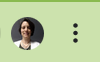
In the Chrome browser, go to the 3-dots menu in the top right corner.
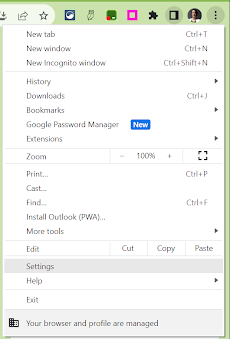
Find ‘Settings’ in the dropdown menu.
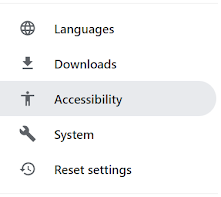
In the menu on the left, open Accessibility.
Toggle on ‘Live Caption’.

You can select a preferred language (from a very short, very limited list), delete a caption language from your account and choose to ‘Hide profanity’ in the settings.
In the Chrome browser, go to the 3-dots menu in the top right corner.
Find ‘Settings’ in the dropdown menu.
In the menu on the left, open Accessibility.
Toggle on ‘Live Caption’.
You can select a preferred language (from a very short, very limited list), delete a caption language from your account and choose to ‘Hide profanity’ in the settings.
Tuesday, November 14, 2023
Reading Mode in Chrome
Reading mode in Chrome browser is now available on all Chromebooks. Customize your reading experience with reading mode. It allows you to more easily focus on the text, reduce distractions from images and videos, adjust the font and size, the spacing and the background color for any article or webpage you are reading.
To access Reading mode, open the reading list icon in the extensions bar.

On the dropdown that says ‘reading list’ select ‘reading mode’.
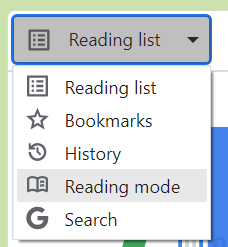
Adjust the size of the reading window using the 2 vertical, parallel lines on the left.

Adjust, from a limited set of options, the font style, size, spacing and background color.

Tuesday, May 9, 2023
Adding and Editing an Image in a Google Drawing
Last week I talked about adding text to a Google Drawing to make pamphlets, flyers, newsletters or even posters.
When creating these projects you will most likely also want to add images. The link below will take you to a tutorial on how to add and edit images in a Google Drawing.
Tuesday, May 2, 2023
Adding and Editing Text in a Google Drawing
Although it is not the most robust tool on the market, Google Drawings can be used to create a variety of desktop publishing needs. Google Drawings can be used to create pamphlets, flyers, newsletters or even posters.
To create these projects you will want to start with adding text. The link below will take you to a tutorial on how to add and edit text in a Google Drawing.
Adding and Editing Text in Google Drawing (https://bit.ly/42KvlKB)
Tuesday, April 18, 2023
Pear Deck in Google Slides
Although Google Slides is a great way to add interest to a lecture or presentation, it can get monotonous or boring at times. Making a presentation more engaging and interactive is the best way to keep everyone's attention.
One way to make a Slides presentation more engaging and interactive is to use the Pear Deck Add-On for Google Slides (https://bit.ly/3CzccR2). Pear Deck allows everyone to have a voice and choice when answering questions, lets you see the slides show on an individual device so that you can follow along more easily, and allows teachers to do quick formative assessments to check for understanding.
To add the Pear Deck Add-On to Google Slides follow the instructions in the tutorial attached below.
Google: Install and Use Add-Ons
(https://bit.ly/38on9XO)
Tuesday, April 11, 2023
Using Emojis in Google Docs
Using Emojis can be a fun way for students to complete school work. They can be used to write summaries or a reading or writing assignment as well as crate a pictograph for a math lesson.
Google has a large selection of emojis, as special text characters, that can be used in Google Docs. To add an emoji to Google Docs follow the tutorial on the document below:
Inserting an Emoji into a Google Doc
Google has a large selection of emojis, as special text characters, that can be used in Google Docs. To add an emoji to Google Docs follow the tutorial on the document below:
Inserting an Emoji into a Google Doc
Tuesday, April 4, 2023
Google Docs: Highlighting Text
Highlighting text inside of Google Doc can be used in a variety of ways in the classroom. It can be used as a way to help students focus and as a way to help them learn the importance of certain information.
Students could highlight:
- key or vocab words
- main sentence
- parts of speech
- parts of a math story problem
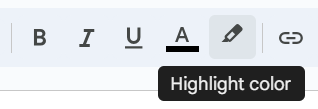
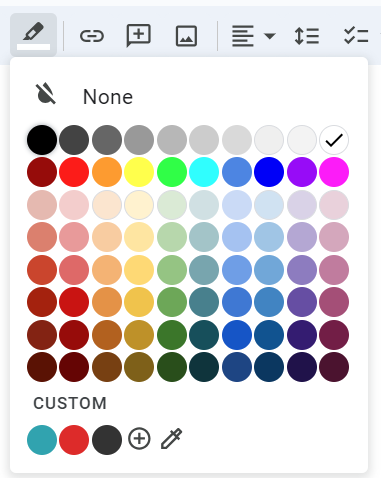
Highlighting text in a Google Doc is fairly simple. I have outlined the steps below.
Highlight Text in a Google Doc

Tuesday, February 7, 2023
Rewordify.com
Have you ever read a text, even reread the text and you still have no idea what you read. Some of our students experience this everyday.
Rewordify.com can help both you and your students!
Rewordify.com can help both you and your students!
To use Rewordify simply enter hard sentences into the yellow box, click 'Rewordify text' and you'll instantly see an easier version. Rewordify even highlights the words it changed and with a simple click, helps you learn the original word.
Check out Rewordify.com for yourself. I know you (and your students) will love it!
Tuesday, January 31, 2023
Postlight Reader
Postlight Reader is a Google Extension that allows you to remove webpage noise and clutter from an article to make it easier for students to read.


Postlight Reader allows you to make minor changes to font style, size and light/dark background options.


Not only is this extension great for students, teachers can also use it for clearing out the clutter on articles that need to be printed or shared with others.
Tuesday, December 13, 2022
SignUp Captioning
Do you know some who is hearing impaired and could use sign language when watching shows and movies?
Are you trying to learn or improve your sign language skills?
The SignUp Google Chrome Extension overlays sign language (both American and British) interpretation on streaming platforms, such as Disney+ and Netflix, for more accessible captioning.
The SignUp Google Chrome Extension overlays sign language (both American and British) interpretation on streaming platforms, such as Disney+ and Netflix, for more accessible captioning.
To learn about SignUp visit their website at https://www.signupcaptions.com/
Tuesday, December 6, 2022
Google Slides: Closed Captions
Google Slides offers a Closed Captions option. This can help anyone read what is being said by the presenter. If the microphone is good enough it will also pick up any questions asked by audience members.
To use Closed Captions in Google Slides check out this easy to follow tutorial.
Tuesday, November 22, 2022
Add a Quick Access World Language Keyboard on an iPad
Do you have students in you classroom in which English is not his/her first language?
You can update the settings on an iPad to a variety of world languages, allowing students to type on the keyboard in his/her native language.
Follow this tutorial to Add a Quick Access World Language Keyboard on an iPad.
You can update the settings on an iPad to a variety of world languages, allowing students to type on the keyboard in his/her native language.
Follow this tutorial to Add a Quick Access World Language Keyboard on an iPad.
Tuesday, November 15, 2022
Add a Quick Access World Language Keyboard on a Chromebook
Do you have students in you classroom in which English is not his/her first language?
You can update the settings on a Chromebook to a variety of world languages, allowing students to type on the keyboard in his/her native language.
Follow this tutorial to Add a Quick Access World Language Keyboard on a Chromebook.
Tuesday, November 8, 2022
Enabling and Using Dictation
Take a moment to consider your students.
Think about the ones who struggle to get their ideas onto paper. How about the students who struggle with spelling or have fine motor control issues. Do you have students in which English is not their first language?
Speech to Text is a tool that can help these students and many others. It is an Accessibility feature built into most devices today. Speech to Text is a tool that allows a writer to dictate their thoughts and ideas into a document.
Speech to Text, also known as Dictation, is available on Chromebooks and iPads. To enable and use dictation on these devices follow the instructions in the tutorials below.
Enabling and Using Dictation on a Chromebook (http://bit.ly/3GobetQ)
Enabling and Using Dictation on an iPad (http://bit.ly/3MntMLC)
Give it a try! Your students will love it (and so will you)!
Tuesday, November 1, 2022
Enabling and Using Text to Speech
Text to Speech is a tool that has multiple uses. It can be used to help with reading and writing. It can be a useful tool for struggling readers, English language learners, and readers with dyslexia as well. It can be used by students and teachers. Text to Speech is an available accessibility feature on both iPads and Chromebooks. Attached below are tutorials on how to enable and use them on these devices.
Enabling and Using Select-to-Speak on a Chromebook
Enabling and Using Select-to-Speak on a Chromebook
(https://bit.ly/3tkSaEI)
Enable Speak Selection on an iPad (https://bit.ly/iPadSpeakSelection)
Enable Speak Selection on an iPad (https://bit.ly/iPadSpeakSelection)
Tuesday, May 3, 2022
Apple Live Listen
Have you ever had a hard time having a conversation in a noisy environment?
With Live Listen (https://apple.co/3Nnnj2U) by Apple, you can use your iPad and AirPods to magnify the sound of the person you are talking with.
Live Listen allows sound captured by an iPad to be magnified and sent wirelessly to AirPods or Beats headphones (https://support.apple.com/en-us/HT2a09082). In a classroom setting, students can use this feature to hear a teacher louder from a distance.
With Live Listen (https://apple.co/3Nnnj2U) by Apple, you can use your iPad and AirPods to magnify the sound of the person you are talking with.
Live Listen allows sound captured by an iPad to be magnified and sent wirelessly to AirPods or Beats headphones (https://support.apple.com/en-us/HT2a09082). In a classroom setting, students can use this feature to hear a teacher louder from a distance.
Tuesday, April 19, 2022
Note Anywhere
Have you ever wanted to leave a note on a webpage? Are you looking for a tool to leave some thoughts while doing some research?
I have a great option for you to try, Note Anywhere.

Note Anywhere is a Google Extension. It allows you to add Post-it type notes to almost any web page.
The notes stay on the page until you delete them and load auto-magically when you open the web page. The extension icon tells you how many post-its you have on a page when you are on the page.
If you right click on the Note Anywhere icon in your extensions tool bar, you can open the options menu. Within options you can change the color of the post-it note. You can also view a summary of where you have notes. It will provide you with a list of URL links to the articles with notes on them.
Note Anywhere can be a useful research tool for both teachers and students.
I have a great option for you to try, Note Anywhere.
Note Anywhere is a Google Extension. It allows you to add Post-it type notes to almost any web page.
The notes stay on the page until you delete them and load auto-magically when you open the web page. The extension icon tells you how many post-its you have on a page when you are on the page.
If you right click on the Note Anywhere icon in your extensions tool bar, you can open the options menu. Within options you can change the color of the post-it note. You can also view a summary of where you have notes. It will provide you with a list of URL links to the articles with notes on them.
Note Anywhere can be a useful research tool for both teachers and students.
Subscribe to:
Posts (Atom)