Showing posts with label AT. Show all posts

Tuesday, November 21, 2023

Live Captions in Chrome

Chrome now offers live captions, it can automatically generate real-time captions directly in the browser. With a couple of quick settings adjustments you can automatically create captions for audio and video.

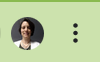
In the Chrome browser, go to the 3-dots menu in the top right corner.


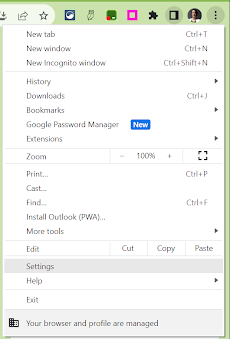
Find ‘Settings’ in the dropdown menu.


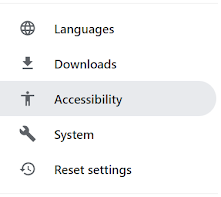
In the menu on the left, open Accessibility.


Toggle on ‘Live Caption’.


You can select a preferred language (from a very short, very limited list), delete a caption language from your account and choose to ‘Hide profanity’ in the settings.

Tuesday, November 7, 2023

Start of the Year

I hope everyone has had a wonderful start to the 2023-2024 school year!

It has been very busy over here, in the technology world. With the return of all of the staff and students on top of a variety of new district initiatives, it has not been dull.

I look forward to writing some new blog posts for you this year. I will touch on both Assistive Technology and Universal Design for Learning options.

Although the use of AI has been around for a while when OpenAI launched its new Generative AI called ChatGPT last November it seems to be the topic everyone wants to know more about.

Since the launch of ChatGPT there are new generative AI platforms every day. I will touch on some of them this school year, especially those that can be used in education, to help both teachers and students.

I look forward to another great year of AT/UDL blog posts, I hope you do too!

Tuesday, February 7, 2023

Rewordify.com

Have you ever read a text, even reread the text and you still have no idea what you read. Some of our students experience this everyday.

Rewordify.com can help both you and your students!

To use Rewordify simply enter hard sentences into the yellow box, click 'Rewordify text' and you'll instantly see an easier version.  Rewordify even highlights the words it changed and with a simple click, helps you learn the original word. 

Check out Rewordify.com for yourself.  I know you (and your students) will love it!

Tuesday, January 24, 2023

Keyboard Shortcuts for Chromebooks

Keyboard shortcuts make my life so much easier.  I love them.  

I found a great article that lists some great keyboard shortcuts for Chromebooks. 
Check out KEYBOARD SHORTCUTS FOR KIDS (https://www.coderkids.com/blog/keyboard-shortcuts-for-kids) from CoderKids

Tuesday, November 8, 2022

Enabling and Using Dictation

 Take a moment to consider your students. 

Think about the ones who struggle to get their ideas onto paper. How about the students who struggle with spelling or have fine motor control issues.  Do you have students in which English is not their first language?


Speech to Text is a tool that can help these students and many others. It is an Accessibility feature built into most devices today. Speech to Text is a tool that allows a writer to dictate their thoughts and ideas into a document. 


Speech to Text, also known as Dictation, is available on Chromebooks and iPads.  To enable and use dictation on these devices follow the instructions in the tutorials below.


Enabling and Using Dictation on a Chromebook (http://bit.ly/3GobetQ)


Enabling and Using Dictation on an iPad (http://bit.ly/3MntMLC)


Give it a try! Your students will love it (and so will you)!


Tuesday, November 1, 2022

Enabling and Using Text to Speech

Text to Speech is a tool that has multiple uses. It can be used to help with reading and writing.  It can be a useful tool for struggling readers, English language learners, and readers with dyslexia as well. It can be used by students and teachers. Text to Speech is an available accessibility feature on both iPads and Chromebooks. Attached below are tutorials on how to enable and use them on these devices.

Enabling and Using Select-to-Speak on a Chromebook 
(https://bit.ly/3tkSaEI)

Enable Speak Selection on an iPad   (https://bit.ly/iPadSpeakSelection)

Tuesday, April 12, 2022

Free to anyone books in Bookshare

Bookshare.org is a program that makes reading easier. People with dyslexia, blindness, cerebral palsy, and other reading barriers can customize their experience to suit their learning style and find virtually any book they need for school, work, or the joy of reading.

Although Bookshare is designed for students with reading struggles, it has over 10,000 freely available books published under the public domain or creative commons license. These books can be read by anyone and are useful for conducting demonstrations and trainings. check out the free book at the links below.

Demo Books - https://www.bookshare.org/browse/collection/353677

Ebook Sources - https://www.bookshare.org/cms/help-center/learning-center/learning-at-home/more-ebooks

Tuesday, November 9, 2021

Siri for Personalization and Off-Line Supports

Did you know that you can use Siri to personalize your iDevice experience? With the release of iOS 15 you can now use Siri for advanced personalization and off-line supports.

Siri now learns the contacts you interact with most, new words you type, and topics you read about — all privately on your device. This allows for an improved understanding of speech recognition on the iPad.

Siri can also process a variety of requests offline, without an internet connection. Some of these options include:
  • Timers & Alarms
  • Sharing
  • App Launch
  • Control Audio Playback
  • Settings

Tuesday, October 5, 2021

Mercury Reader

Mercury Reader is a Google Extension that allows you to remove webpage noise and clutter from an article to make it easier for students to read.  

Mercury Reader Extension - Off          Mercury Reader Extension -On

Mercury Read allows you to make minor changes to font style, size and light/dark background options.  

Mercury Reader Extension - Settings icon     Mercury Reader Extension - Settings Menu

Mercury Reader also has a keyboard shortcut 
which allows you to switch the Reader on and off within any article:
Cmd + Esc for Mac users
Alt + ` for Windows users

Tuesday, September 21, 2021

Google Extensions

Chromebooks are similar to a computer but different in a few ways, primarily they have limited storage space. To allow a Chromebook to function more like a standard computer Google created Extensions. Extensions are small software programs that customize the browsing experience. They can be used on a Chromebook as well as in the Chrome browser on a computer. Extensions modify and enhance the functionality of Google Chrome.
To install a Google Extension, visit the Google Web Store.

Over the course of the next few weeks, I will be highlighting a series of Extensions that I use on an almost daily basis. I hope you and your students find them as useful as I have.

Tuesday, September 14, 2021

Text-to-Speech - Chromebook & iPad

Text to Speech is a tool that has multiple uses. It can be used to help with reading and writing. It can be used by students and teachers.

I use text to speech to edit my writing. I listen to what I have written to help with sentence structure or misused words. It helps me improve my writing. I use text to speech to edit many of my blog posts.

Text to Speech can be a useful tool for struggling readers, English language learners, or readers with dyslexia as well. Using Text to Speech as a reading tool can help a variety of students and adults.

Most devices have text-to-speech built into the operating system. On a Chromebook it is called Select-to-Speak (https://bit.ly/38NeLjv). On an iPad it is called Speak Selection (https://bit.ly/2XmxZYD).
To view the tutorials on how to enable and use these features select the apporiate link above.

Try it out for yourself.  I am sure you will love it!

~~~~~~~~~~

To use Text-to-Speech on a MacBook or iMac, follow these directions (https://bit.ly/2YusABr) to enable Text to Speech.
Tuesday, September 7, 2021

Speech-to-Text, Google Voice Typing

As a district we have moved to 1:1 enviornment.  Every YCS student has access (or can have access) to a district issued device.  Take a moment to consider your students. Think about the ones who struggle to get their ideas onto paper. How about the students who struggle with spelling or have fine motor control issues.

Speech to Text is a tool that can help these students and many others. Speech to Text is an Accessibility feature built into most computers today. It is a tool that allows a writer to dictate their thoughts and ideas into a document. Many Speech to Text options also allow you to speak the punctuation and a multitude of other voice commands for editing purposes.

Google Docs has a built in Speech to Text option called Voice Typing.

Google offers a fairly comprehensive instructional guide for Voice Typing. The guide includes a list of languages supported by Voice Typing as well as a list of punctuation that can be voice enabled. The guide also includes a list of voice commands for formatting or editing your document in the sections under “Voice commands”. There are also some troubleshooting tips located near the end of the guide.

Voice Typing is also available on iPads via the microphone icon that appears next to the keyboard when typing.  


Give it a try! Your students will love it (and so will you)!

~~~~~~~~~~

Voice Typing is also available as a built-in features on the staff MacBooks.  Please reach out to me if you would like a tutorial on how to set it up for your use.

Tuesday, April 13, 2021

AVA - Web Captioner

Are you looking for a program that will caption in-person and online conversations?

Ava Closed Captions (Ava.me) is available for Mac, Windows, Web, Android, and iOS devices. With just one click you can display instant captions, no matter what tool you use.

Ava offers free, unlimited automatic captions powered by the best-in-class speech recognition software.  Ava uses AI to transcribe instantly what people say.  With Ava you can caption live conversation, online meetings or even online videos.

Tuesday, March 16, 2021

Mathshare

In last weeks post I provided a link to the Bookshare YouTube channel. This week I want to discuss Mathshare.

Mathshare is new product from Benetech, the developers of Bookshare. Mathshare is similar to Bookshare, but for Math. 
According to Benetech, as many as 40 percent of students grapple with math. It can be particularly difficult for students with special needs, who can struggle with organization or accessing information. Whatever the learning challenge, Mathshare’s unique step-by-step problem solving approach and built-in accessibility make learning math easier and inclusive for all students.

I do want to point out there is one HUGE difference between Bookshare and Mathshare.  Bookshare has specific qualification requirements.  Mathshare on the other hand is free for any school or student to use!

Check out Mathshare at https://mathshare.benetech.org/

They also have a YouTube channel with some helpful videos.  You can find it at https://www.youtube.com/c/Mathshare

Tuesday, March 9, 2021

Bookshare: How-Tos on YouTube

I have been promoting Bookshare across our school district for quite a few years now.  We are slowly beginning to provide access to our students who need and qualify for this resource.  

To get the word out even farther, I would like to share some more Bookshare resources.

Bookshare has a YouTube channel that contains webinars, testimonials, tutorials and tips for using Bookshare.  You can find the YouTube channel at https://www.youtube.com/user/BookshareTeam/videos

Within the YouTube channel there is a playlist of short videos on how to Manage Bookshare Accounts.  You can find that playlist by going to http://bit.ly/3bibcUK


Tuesday, February 9, 2021

Otter.ai

Otter.ai lets you transcribe, caption and record audio in real time.  Otter.ai is available in English on the Web, on iOS, Android, Zoom, and in Google Meet.  You can use Otter.ai to caption meetings, transcribe lectures and record your voice for easy listening later.  

If you would like to add this extension to your Chrome Browser, click the link below:

http://bit.ly/2OkY9ZB

There are easy to follow instructions here:

http://bit.ly/3p5T7N8

If you are looking for the iOS app, while on your iOS device, follow the link below:

https://apple.co/3cU3gKr

To add the app to your Android device follow the link below:

http://bit.ly/2NaMY4R

Tuesday, September 22, 2020

Zoom Accessibility Features & Best Practices for Security

As we move into new online based teaching and learning, some staff and students need additional online support.  Zoom has built in Accessibilities Features and they outline them in tutorials on their web page.

https://zoom.us/accessibility

Zoom has also published a series of Educational How To's.  
The one that caught my eye this week is called:

Tuesday, September 1, 2020

Additional Information: Resources for Creating Accessible Content

Resources for Creating Accessible Content

AMMR training materials and resources created by Alt+Shift can be found in the Accessible Materials Made Right: Workshop Files folder. Additional resources that have been provided by past AMMR participants are located in the Shared Resources folder. Please consider uploading any of your own resources to this folder so that others can benefit from your shared knowledge and experience.

View the AMMR Shared Resources Folder on Google Drive  (https://bit.ly/3bwPFFA)

Tuesday, August 25, 2020

Course 7: Developing Your Plan

Accessible Materials Made Right #7: Develop Your Plan

This course presents a series of questions to consider as you or your district or organization plan for digital accessibility. The approach to assembling a team, reviewing resources, revising resources, and clarifying future resource development needs to include defined goals and timelines that are reasonable to achieve and move you forward. If you work as part of a team or organization, those goals and timelines should also reflect input from the group. This increases shared ownership and accountability.

The purpose of the AMMR series is to increase awareness of what makes digital content accessible and why it really matters. The series will equip you with the knowledge and skills needed to begin creating accessible documents. This course focuses on using intentional planning and design to help people who would not otherwise be able to access electronic content.

Visit Course 7  (https://www.edupaths.org/Pathways/Details/1311)

Tuesday, August 18, 2020

Course 6: Microsoft PowerPoint

Accessible Materials Made Right #6: Microsoft PowerPoint

This course focuses on using Microsoft PowerPoint to create accessible presentations. Some foundational aspects of accessibility are reviewed as well as slide set up, reading order, the accessibility checker, creating handouts, and more. This course is not intended to stand alone from the first three courses in the AMMR series. Foundational and essential knowledge communicated in those courses will not be found in this course.

Visit Course 6  (https://www.edupaths.org/Pathways/Details/1298)
