Showing posts with label Extension. Show all posts

Tuesday, January 31, 2023

Postlight Reader

Postlight Reader is a Google Extension that allows you to remove webpage noise and clutter from an article to make it easier for students to read.  

Mercury Reader Extension - Off          Mercury Reader Extension -On

Postlight Reader allows you to make minor changes to font style, size and light/dark background options.  

Mercury Reader Extension - Settings icon     Mercury Reader Extension - Settings Menu

Not only is this extension great for students, teachers can also use it for clearing out the clutter on articles that need to be printed or shared with others.  

Tuesday, December 13, 2022

SignUp Captioning

Do you know some who is hearing impaired and could use sign language when watching shows and movies?
Are you trying to learn or improve your sign language skills?

The SignUp Google Chrome Extension overlays sign language (both American and British) interpretation on streaming platforms, such as Disney+ and Netflix, for more accessible captioning.

To learn about SignUp visit their website at https://www.signupcaptions.com/

Tuesday, April 19, 2022

Note Anywhere

Have you ever wanted to leave a note on a webpage? Are you looking for a tool to leave some thoughts while doing some research?

I have a great option for you to try, Note Anywhere.


Note Anywhere is a Google Extension. It allows you to add Post-it type notes to almost any web page.
The notes stay on the page until you delete them and load auto-magically when you open the web page. The extension icon tells you how many post-its you have on a page when you are on the page.

If you right click on the Note Anywhere icon in your extensions tool bar, you can open the options menu. Within options you can change the color of the post-it note. You can also view a summary of where you have notes. It will provide you with a list of URL links to the articles with notes on them.

Note Anywhere can be a useful research tool for both teachers and students.

Tuesday, March 8, 2022

Visor

Visor (https://bit.ly/3KVq0b7) is a Google Chrome extension that is a screen dimmer and reading aid. Visor may also help with fluency, eye-strain, concentration and comprehension whilst reading.
 
Visor offers overlays and point of focus features that may assist users with visual perceptual difficulties such as Dyslexia, Scotopic Sensitivity Syndrome and Visual Stress. 

Visor also uses a point of focus feature, designed to help further reduce visual confusions and the tendency to skip lines. Visors horizontal focal point tracks your mouse, giving you full focus to the content being read, while reducing the visual noise of the surrounding page.

Tuesday, October 26, 2021

OneTab

Some Google Extensions are great tools for productivity and organization.  One Extension that can be very helpful is OneTab.

OneTab


One Tab allows you to convert all of your open tabs into a list of URLs.  


From the list you can restore your tabs individually or all at once.  


Using OneTab can conserve battery power on a laptop/Chromebook.  It can also help speed up your device.  OneTab temporarily reduces the amount of memory your computer or chromebook uses, when you keep too many tabs running in the background.

The URL list can also be exported to save for later or to be shared with someone.


OneTab may be just the tool your students need when they are working on a research paper for your class.  They can open and view multiple tabs.  When computer time is over, they send the OneTab list to their G-Mail for later review and use.  They will have all of their research available to them, without having to continually start over or remember what they had searched for previously.  

Tuesday, October 5, 2021

Mercury Reader

Mercury Reader is a Google Extension that allows you to remove webpage noise and clutter from an article to make it easier for students to read.  

Mercury Reader Extension - Off          Mercury Reader Extension -On

Mercury Read allows you to make minor changes to font style, size and light/dark background options.  

Mercury Reader Extension - Settings icon     Mercury Reader Extension - Settings Menu

Mercury Reader also has a keyboard shortcut 
which allows you to switch the Reader on and off within any article:
Cmd + Esc for Mac users
Alt + ` for Windows users

Tuesday, September 28, 2021

Tab Scissors and Tab Glue

Tab Scissors and Tab Glue are 2 of my FAVORITE extensions. These 2 extensions go hand-in-hand and are useful for a variety of reasons.
 
Image of Tab Scissors Extension Tab Scissors lets you separate 2 tabs within one Google Chrome browser window. Tab Scissors splits the tabs into 2 smaller, equal sized windows allowing you to compare information side-by-side. The extension separates your window at the active tab and the one to its immediate left. If you have additional tabs open, the ones on the left stay in the left window and the ones on the right stay in the right window.

Image of Tab Glue Extension Tab Glue allows you to quickly put all of your tabs back together, into one large window. Your tabs remain in their original order. Tab Glue simply works in the reverse of Tab Scissors.

Tuesday, September 21, 2021

Google Extensions

Chromebooks are similar to a computer but different in a few ways, primarily they have limited storage space. To allow a Chromebook to function more like a standard computer Google created Extensions. Extensions are small software programs that customize the browsing experience. They can be used on a Chromebook as well as in the Chrome browser on a computer. Extensions modify and enhance the functionality of Google Chrome.
To install a Google Extension, visit the Google Web Store.

Over the course of the next few weeks, I will be highlighting a series of Extensions that I use on an almost daily basis. I hope you and your students find them as useful as I have.

Tuesday, November 3, 2020

Must-Have Google Slides Add-Ons for Teachers

This weeks video comes from Sam Kary, New EdTech Classroom.

In his video, Must-Have Google Slides Add-Ons for Teachers (https://youtu.be/jvpU2qPAt-k), Sam talks about 9 helpful Google Slides Add-Ons.  

1. Unsplash
2. Extensis Fonts
3. Flaticon
4. Slides Translator
5. Easy Accents
6. Hypatia
7. Pear Deck
8. Slido
9. Nearpod

If you have never looked through or installed an add-on it is simple.  I have created a very quick tutorial to show you how.  

Google: Install an Add-On (https://bit.ly/38on9XO)

Tuesday, January 14, 2020

DF Tube (Distraction Free for YouTube™)

DF Tube (Distraction Free for YouTube™) (https://tinyurl.com/yd3x2lag) is a Google Extension that is used to hide the video recommendations sidebar and the related videos that appear at the end of videos. It also removes the grid of recommended videos that appear on your homepage.  All of the settings in DF Tube are configurable and allows you to hide comments and disable playlists sitewide.

YouTube™, as a company, is directly incentivized to create views and get as many ad clicks as possible.  Because of this we are often overwhelmed with thumbnails and advertisements from every angle.  While this is good for someone looking to kill time, it is not so good if you are trying to focus on educational content, do research, or find some relaxing music to groove to.

Give it a try for yourself and see how much more productive you can be!

Tuesday, September 24, 2019

Installing Google Extensions, Apps and Add-ons

Google has a variety of "add-on" features, many of which are free. They have Google Extensions, Google Apps and Google Add-ons. I review a number of these great features as a part of this Blog. Attached below are instructions for how to add these wonderful features for use in your Google browser or with the G-Suite of applications.

Install a Google Extension or Google App 

(https://tinyurl.com/y4vpgjpd)

Install a Google Add-on 

(https://tinyurl.com/y5xld2bh)


Tuesday, April 30, 2019

Grackle Accessibility Checker - Guest Writer

Grackle Accessibility Checker (https://goo.gl/EdxT9Z)

On January 18, 2017 (amended January 22, 2018), the United States Access Board (https://www.access-board.gov/) updated their Section 508 Standards (https://www.access-board.gov/guidelines-and-standards/communications-and-it/about-the-section-508-standards) as it applies to information and communications technology (https://www.access-board.gov/guidelines-and-standards/communications-and-it) used by or provided by government agencies, including public schools. To help all of us navigate the requirements, GrackleDocs, Inc. (https://www.grackledocs.com/) has a tool we can use to check accessibility for free, either as an add-on to our Google Docs, Sheets, and Slides, or as a Chrome extension for other web content. Sounds great! How do I get it?

Chrome Extension

While logged into your district Google account, browse to the following link, then click the blue Add to Chrome button, and accept the terms:

https://chrome.google.com/webstore/search/grackle?utm_source=chrome-ntp-icon

Click Add to Chrome
When Grackle is active on a tab with editable G-Suite content, there will be an icon that looks like a bird in silhouette against a dark blue background near the right end of the URL bar. Click the icon to grade the accessibility of the current browser tab. If the current tab is not editable G-Suite content, the bird silhouette will appear against gray.


Click to grade the accessibility of the current page.

indicates that this page cannot be graded for accessibility

Docs, Sheets, and Slides

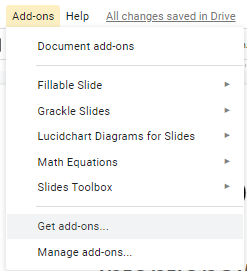
Within an open Doc, Sheet, or Slides file, click Add-ons → Get add-ons… in the menu. In the Add-ons search box, type grackle, then click the blue +FREE button, and accept the terms.

Get add-ons

Add-on for Grackle

To use Grackle to analyze your file for accessibility, click Add-ons → Grackle [Docs / Sheets / Slides] → Launch. A window will appear on the right side of the screen that will contain, within moments, an accessibility analysis of your file. Welcome to the world of accessibility!

Note that with the free version of Grackle, the tagged PDF export feature from within the analysis window is limited to the first 30 days of use. However, you can still export PDF files from the menu using File → Download as → PDF Document (.pdf). Some features of the reports, such as suggestions for remediation, may also be limited in the free version.

Tuesday, June 12, 2018

InsertLearning

InsertLearning (https://goo.gl/wpKi1a) is a Google Extension that lets you transform any webpage into an interactive lesson.  You can highlight text, insert post-its, ask questions, insert videos and so much more.  It also integrates with Google Classroom directly from the Toolbar.

This extension was designed by two high school teachers who were looking for a way to let teachers turn the internet into interactive learning experiences for their students.  

Download the Google Extension and go through the Tutorial today!

Tuesday, March 27, 2018

Diigo

Have you been looking for a way to save and tag your online resources for easy access anytime?
How about a way for your students to annotate web pages and PDF's online?
What about a way to share your research with students, classmates, or colleagues?
Diigo (https://www.diigo.com/), a Google Extension (https://goo.gl/9GB7eu), lets you bookmark, tag, highlight, add sticky notes and share information with a group.


You might want to consider creating a group with your colleagues.  Share resources that you find useful.  Book mark and tag the site with keywords to help locate it later.  
How could this help your students, in your classroom?

Tuesday, March 13, 2018

BeeLine Reader

Do you have a lot of reading to do? Do some of your students struggle with tracking?
Make reading easier and faster using BeeLine Reader!

BeeLine Reader is backed by research.  It is a tool that improves reading ability for individuals of all ages and skill levels. BeeLine Reader displays text using color gradients that wrap from the end of one line to the beginning of the next.  It facilitates visual tracking which allows a reader to focus on decoding and comprehension.

You can download BeeLine Reader in the Chrome Web Store and try it out for yourself.

The BeeLine extension works on millions of news websites and blogs, Kindle books, Google Docs, and even G-Mail.
BeeLine has been adopted by the California Public Library System (http://www.publiclibraries.com/california.htm), Bookshare.org (bookshare.org) and Reading Is Fundamental (RIF.org). 

With the extension, you can read as much as you want for two weeks. After the trial period, you can use BeeLine up to 5 times every day for free.  For more reading freedom, subscribe to BeeLine Reader Pro for just $2/month (or less if you subscribe annually). Students and teachers can also apply on our website for our free Student Pass (certain limitations apply).

Please check out BeeLineReader.com (BeeLineReader.com) for more information.

Tuesday, February 20, 2018

Google Keep

Google Keep is a helpful tool that can be used for taking quick notes or making lists. You can save notes on the Google Keep dashboard or export them to Google Drive.

Screen Shot 2016-08-24 at 8.19.47 AM.png


You can quickly capture notes, lists, documents and photos to Google Keep.  You can also record a voice memo in Google Keep.  

Google Keep notes can be shared with others for easy collaboration on any activity.


Keep notes can be color coded or labeled for easy organization.  


Google Keep is available as:
a Chrome Extension,
(https://chrome.google.com/webstore/detail/google-keep-chrome-extens/lpcaedmchfhocbbapmcbpinfpgnhiddi?hl=en_ )
a Google App,
(https://chrome.google.com/webstore/detail/google-keep-notes-and-lis/hmjkmjkepdijhoojdojkdfohbdgmmhki?hl=en)
an iOS app 
(https://itunes.apple.com/us/app/google-keep/id1029207872?mt=8)
and on the Google Play Store
(https://play.google.com/store/apps/details?id=com.google.android.keep&hl=en).

Tuesday, January 30, 2018

Cite This for Me: Web Citer

Do you need to cite a website for your research paper?  How about do an inline citation for your literature review?  

What format is required by your teacher?  How do you know you have used the correct citing?


Cite This for Me: Web Citer (https://goo.gl/TVqfrt)


Cite This for Me is a Google extension that can create APA, MLA, Chicago, or Harvard referencing styles for your bibliography.  You can use it to create citations for websites, books, journals, newspapers, and so much more.


Quickly add a reference,


Then choose a style.


Cite This for Me provides you with both the in-text citation as well as your bibliography information.  The information below is for a website in Harvard format.


  • In-text: (Roling, 2018)
  • Your Bibliography: Roling, C. (2018). The Best Super Bowl Commercials of All Time. [online] Bleacher Report. Available at: http://bleacherreport.com/articles/2755254-the-best-super-bowl-commercials-of-all-time [Accessed 29 Jan. 2018].
There is a paid for version that will directly download your bibliography to Microsoft Word, but with the free version you can still copy and paste the citation into your document.  

Give Cite This for Me a try.

Tuesday, January 9, 2018

Print Friendly & PDF

Print Friendly & PDF is a Google Extension that lets you remove ads, clutter, and navigation junk from pages you want to print. The extension allows you to simply click to delete any content before printing. Pages can be also be saved as PDFs. 

To use Print Friendly, after you have installed the extension, you simply navigate to the webpage you need to clean up and click on the extension.  The pop up starts by cleaning up some of the mess for you and lets you make additional edits yourself.  For some additional support using this extension please watch this PrintFriendly.com video tutorial.

Tuesday, December 26, 2017

Announcify

Announcify is a text-to-speech extension that will read webpages aloud for you.  It also cleans up the webpage while it is reading it aloud, taking out the clutter.  Announcify helps keep your focus by blurring out all of the text except for the paragraph currently being read. 


There is a floating menu on the left side of the screen that allows the user to click the forward and backwards arrows to un-blur each paragraph in an article, one at a time.  It also has a play / pause button to stop and start the text-to-speech.

Tuesday, December 12, 2017

PicMonkey - Premium Content

Do your students like to include images in their written work?  
Would you like to add fun details, information or images to the assignments you give to your students?  
Are you looking for a new way to create social stories?

PicMonkey might be just the thing you need.  PicMonkey is a photo editor that can add color and pizazz to yours and your students work.  

PicMonkey is available as both a Google App and a Google Extension

The PicMonkey App is a free photo editor.  As a photo editor it has "Collage, Touch Up, Teeth Whiten, Fonts, Effects, Filters, Frames, Stickers & more" according to the website.

The PicMonkey Extension instantly allows you to edit web page images and screenshots.  You can "instantly grab images from any Web page and open them up in PicMonkey for editing."


PicMonkey is simple to use.  Here’s how it works: 

Click the PicMonkey icon when you’re viewing a web page. In one kajillionth of a second, every image on that page and a screenshot of the entire page appears as a tiny thumbnail in a sidebar. Select one to edit, and wah-la!  PicMonkey shows up to do your bidding.

PicMonkey is a free online photo editor that says Booyah! to whatever your creative heart desires. Its lean and fast engine lets you perform basic edits, like crop and rotate, and enhance your images with luscious effects, overlays, fonts, textures, frames and touch up tools.  Ridiculously easy, staggeringly gorgeous.