Tuesday, October 26, 2021

OneTab

Some Google Extensions are great tools for productivity and organization.  One Extension that can be very helpful is OneTab.

OneTab


One Tab allows you to convert all of your open tabs into a list of URLs.  


From the list you can restore your tabs individually or all at once.  


Using OneTab can conserve battery power on a laptop/Chromebook.  It can also help speed up your device.  OneTab temporarily reduces the amount of memory your computer or chromebook uses, when you keep too many tabs running in the background.

The URL list can also be exported to save for later or to be shared with someone.


OneTab may be just the tool your students need when they are working on a research paper for your class.  They can open and view multiple tabs.  When computer time is over, they send the OneTab list to their G-Mail for later review and use.  They will have all of their research available to them, without having to continually start over or remember what they had searched for previously.  

Tuesday, October 19, 2021

Turn on/off auto numbering and bullets in Google

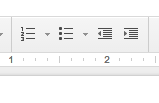
1. When you start a line with a number, auto numbering automatically turns on.
2. This is great if it is the feature you want.
3. If this is not what you want...
4. Shut it off by un-selecting the numbering button in the tool bar.


This also works for turning on and off bullets.

Tuesday, October 12, 2021

Google Timer - guest writer Jerilyn Lynn

In order to provide great information for my readers, I have enlisted the help of some guest writers.

This week I am using a write-up from Jerilyn Lynn, M.I.L.S - University of Michigan, Technology Resource Specialist for Ypsilanti Community Schools.

Google Timer

  1. Go to the Google Search Page: www.google.com

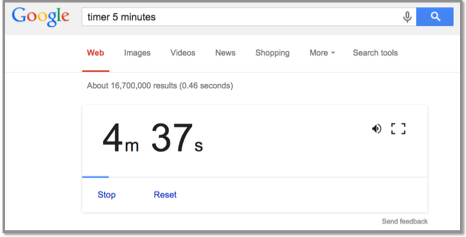
  2. Enter: timer 5 minutes (or whatever time you want) 5 minutes is just an example of minutes

  3. Press the enter key.

  4. The timer will automatically start counting down!

  5. Click the speaker icon to mute the alarm.

  6. Click the frame icon to switch to the full-screen mode.

Tuesday, October 5, 2021

Mercury Reader

Mercury Reader is a Google Extension that allows you to remove webpage noise and clutter from an article to make it easier for students to read.  

Mercury Reader Extension - Off          Mercury Reader Extension -On

Mercury Read allows you to make minor changes to font style, size and light/dark background options.  

Mercury Reader Extension - Settings icon     Mercury Reader Extension - Settings Menu

Mercury Reader also has a keyboard shortcut 
which allows you to switch the Reader on and off within any article:
Cmd + Esc for Mac users
Alt + ` for Windows users

Tuesday, September 28, 2021

Tab Scissors and Tab Glue

Tab Scissors and Tab Glue are 2 of my FAVORITE extensions. These 2 extensions go hand-in-hand and are useful for a variety of reasons.
 
Image of Tab Scissors Extension Tab Scissors lets you separate 2 tabs within one Google Chrome browser window. Tab Scissors splits the tabs into 2 smaller, equal sized windows allowing you to compare information side-by-side. The extension separates your window at the active tab and the one to its immediate left. If you have additional tabs open, the ones on the left stay in the left window and the ones on the right stay in the right window.

Image of Tab Glue Extension Tab Glue allows you to quickly put all of your tabs back together, into one large window. Your tabs remain in their original order. Tab Glue simply works in the reverse of Tab Scissors.

Tuesday, September 21, 2021

Google Extensions

Chromebooks are similar to a computer but different in a few ways, primarily they have limited storage space. To allow a Chromebook to function more like a standard computer Google created Extensions. Extensions are small software programs that customize the browsing experience. They can be used on a Chromebook as well as in the Chrome browser on a computer. Extensions modify and enhance the functionality of Google Chrome.
To install a Google Extension, visit the Google Web Store.

Over the course of the next few weeks, I will be highlighting a series of Extensions that I use on an almost daily basis. I hope you and your students find them as useful as I have.

Tuesday, September 14, 2021

Text-to-Speech - Chromebook & iPad

Text to Speech is a tool that has multiple uses. It can be used to help with reading and writing. It can be used by students and teachers.

I use text to speech to edit my writing. I listen to what I have written to help with sentence structure or misused words. It helps me improve my writing. I use text to speech to edit many of my blog posts.

Text to Speech can be a useful tool for struggling readers, English language learners, or readers with dyslexia as well. Using Text to Speech as a reading tool can help a variety of students and adults.

Most devices have text-to-speech built into the operating system. On a Chromebook it is called Select-to-Speak (https://bit.ly/38NeLjv). On an iPad it is called Speak Selection (https://bit.ly/2XmxZYD).
To view the tutorials on how to enable and use these features select the apporiate link above.

Try it out for yourself.  I am sure you will love it!

~~~~~~~~~~

To use Text-to-Speech on a MacBook or iMac, follow these directions (https://bit.ly/2YusABr) to enable Text to Speech.