Tuesday, May 9, 2023

Adding and Editing an Image in a Google Drawing

Last week I talked about adding text to a Google Drawing to make pamphlets, flyers, newsletters or even posters.

When creating these projects you will most likely also want to add images.  The link below will take you to a tutorial on how to add and edit images in a Google Drawing.  

Adding and Editing Images in Google Drawing

Tuesday, May 2, 2023

Adding and Editing Text in a Google Drawing

Although it is not the most robust tool on the market, Google Drawings can be used to create a variety of desktop publishing needs.  Google Drawings can be used to create pamphlets, flyers, newsletters or even posters.

To create these projects you will want to start with adding text.  The link below will take you to a tutorial on how to add and edit text in a Google Drawing.  

Adding and Editing Text in Google Drawing  (https://bit.ly/42KvlKB)

Tuesday, April 25, 2023

Closed Captioning in Google Slides

Google Slides offers a Closed Captions option.  This can be used to help anyone read what is being said by the presenter or what is being said during a presentation video.  

If the microphone is good enough it will also pick up any questions asked by audience members.  

Closed Captioning in Google Slides can be added to the top or the bottom of the presentation.  Adding the captioning to the top could be used in other ways as well.  Think about having a presentation open and running above a video that doesn't have closed captioning available.  

To use Closed Captions in Google Slides check out this easy to follow tutorial.

Google Slides - Closed Captions (https://bit.ly/43Q2YMg)

Tuesday, April 18, 2023

Pear Deck in Google Slides

Although Google Slides is a great way to add interest to a lecture or presentation, it can get monotonous or boring at times.  Making a presentation more engaging and interactive is the best way to keep everyone's attention.  

One way to make a Slides presentation more engaging and interactive is to use the Pear Deck Add-On for Google Slides (https://bit.ly/3CzccR2).  Pear Deck allows everyone to have a voice and choice when answering questions, lets you see the slides show on an individual device so that you can follow along more easily, and allows teachers to do quick formative assessments to check for understanding.  

To add the Pear Deck Add-On to Google Slides follow the instructions in the tutorial attached below.

Google: Install and Use Add-Ons

(https://bit.ly/38on9XO)

Tuesday, April 11, 2023

Using Emojis in Google Docs

Using Emojis can be a fun way for students to complete school work. They can be used to write summaries or a reading or writing assignment as well as crate a pictograph for a math lesson.

Google has a large selection of emojis, as special text characters, that can be used in Google Docs. To add an emoji to Google Docs follow the tutorial on the document below:

Inserting an Emoji into a Google Doc

Tuesday, April 4, 2023

Google Docs: Highlighting Text

Highlighting text inside of Google Doc can be used in a variety of ways in the classroom.  It can be used as a way to help students focus and as a way to help them learn the importance of certain information.  

Students could highlight:

  • key or vocab words
  • main sentence
  • parts of speech
  • parts of a math story problem
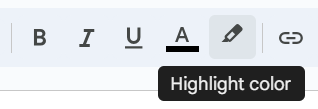
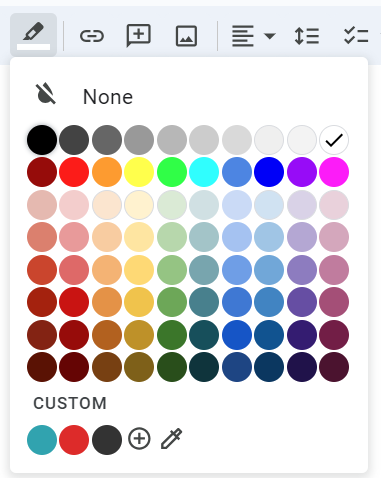
Highlighting text in a Google Doc is fairly simple.  I have outlined the steps below.

Highlight Text in a Google Doc

Select the text you want to highlight.

Click on the Highlight button in the toolbar.

Select the color you would like to use.

Repeat this process for additional text throughout the document, as needed.  


Tuesday, March 28, 2023

Google Workspace Introduction

Many of us used Microsoft products for our word processing, spreadsheets and presentations when we were growing up, going through school. Although Microsoft is still the biggest name in the field, Google is making a name for itself with its versions, Docs, Sheets and Slides.

As our schools continue to move to or be 1:1 technology environments, most of these devices are Chromebooks or have the Chrome browser available on them.

Although Google has changed the name of it's suite or tools, it is currently going by Google Workspace, the suite of applications has done nothing but improve, become more robust, over the years. Google Workspace for Education is a set of Google tools and services that are tailored for schools and homeschools to collaborate, streamline instruction, and keep learning safe. They are productivity and collaboration tools for all of the ways we work and learn.

Over then next few weeks we will be learning about these Google products and how we can use them to help our students achieve success.  I will be picking a couple of my favorite features and giving you a quick overview of how they work along with some ideas of how you could use them in the classroom.